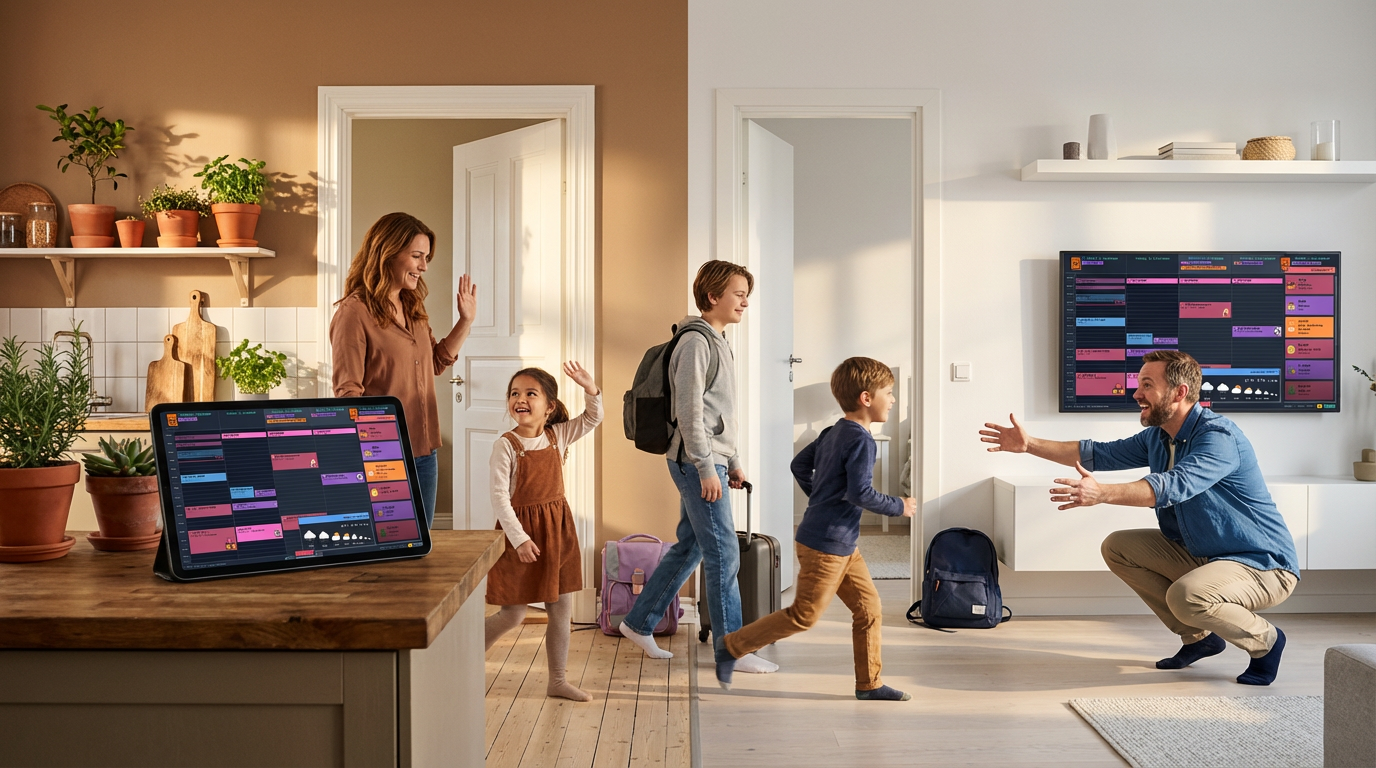
This guide shows you how to set up a shared Google Calendar for co-parenting. Both parents see the same schedule — custody days, activities, handoffs — without the constant "Did you get my message?" stress.
Why Shared Calendars Work for Co-Parents
The biggest source of co-parenting conflict isn't disagreement — it's miscommunication. "I thought you were picking her up." "You never told me about the dentist appointment." "Which house is she at this weekend?"
A shared calendar creates a single source of truth. Both parents see the same information. No more "he said, she said." No more children caught in the middle as messengers.
When a child asks "When do I go back to Mom's?" you can say "Check the calendar." That small shift is powerful — it gives kids a sense of control during a time when everything feels uncertain.
What This System Solves
- Custody schedule confusion — Full-day events show whose week it is at a glance
- Missed handoffs — Locations in event descriptions prevent "Where are you?" chaos
- Activity coordination — Both parents see soccer practice, doctor appointments, school events
- Holiday disputes — Plan the rotation in advance (Christmas at Mom's 2025, Dad's 2026)
- Kids feeling anxious — When children can see the schedule, they feel more secure
Common Custody Schedules That Work
Not sure which custody pattern fits your family? Here are the most common arrangements — each works well with a shared calendar:
7-7 week on, week off
Alternating full weeks with each parent
M T W T F S S · M T W T F S SM M M M M M M · D D D D D D DBest for: School-age children, parents who live apart
2-2-3 rotation
2 days Mom, 2 days Dad, 3-day weekend switches
M T W T F S S · M T W T F S SM M D D M M M · D D M M D D DBest for: Young children (under 6) who need frequent contact
2-2-5-5 schedule
Mon–Tue Mom, Wed–Thu Dad, Fri–Tue alternates
M T W T F S S · M T W T F S SM M D D M M M · M M D D D D DBest for: Balanced 50/50 split with predictable pattern
11-3 alternating weekends
Primary parent has weekdays, other has Fri–Sun every 2 weeks
M T W T F S S · M T W T F S SP P P P P P P · P P P P O O OBest for: When one parent has primary custody
3-4-4-3 rotation
3 days, 4 days, then swap
M T W T F S S · M T W T F S SM M M D D D D · D D D M M M MBest for: Families wanting equal time without full-week separations
Legend: M = Mom · D = Dad · P = Primary · O = Other
Why Google Calendar (Not a Paid App)?
Specialized co-parenting apps cost $100–150/year. They're designed for high-conflict situations where you need court-admissible records.
For most co-parents, Google Calendar does the job for free:
- Both parents already have Google accounts
- Syncs instantly to any phone, tablet, or computer
- Easy to share with grandparents, babysitters, or new partners
- Kids can access it on their own devices when they're older
- No subscription fees, no app to install
If communication with your co-parent is genuinely hostile, a specialized app with message logging may be worth it. But for cooperative co-parenting, Google Calendar is all you need.
What If My Co-Parent Won't Cooperate?
Start by using it yourself. Add all custody days, activities, and appointments. Then share it as read-only with your co-parent. Even if they don't add events, they can see everything you've entered. Many reluctant co-parents start engaging once they see how useful it is.
And don't worry — sharing the kids' calendar doesn't expose your personal life. When you share a specific calendar, only that calendar is visible. Your personal appointments, work calendar, and other calendars remain completely private. That's why we recommend creating a dedicated "Kids Schedule" calendar.
Should Kids See the Calendar?
For school-age children, absolutely. Share the calendar with their Google account (read-only is fine). When children can check the schedule themselves, it reduces anxiety and gives them a sense of control. They stop asking "Which house am I at tonight?" because they can just look.
Younger children benefit from a printed version on the fridge with color-coded stickers — something they can touch and point to.
What About Last-Minute Changes?
Life happens. Edit the event directly and add a note in the description explaining the change. Google Calendar keeps a revision history, so nothing gets lost.
One important thing: calendar edits don't send automatic notifications. For major changes, follow up with a quick text. The calendar is the source of truth — messaging is for heads-up alerts.
What Works for Co-Parents
| Best Practice | Why It Helps |
|---|---|
| Full-day events for custody | See whose week it is at a glance |
| Name events with responsibility | "Emma Dentist — Mom handles" ends confusion |
| Use emoji for custody days | 👧👦 Kids at Mom's or 👩 @Mom becomes instantly recognizable |
| Add locations to descriptions | No more "Where are you?" texts |
| Plan holidays in advance | Prevents annual disputes |
Create a New Google Calendar
Don't share your personal calendar. Create a dedicated one for family events.
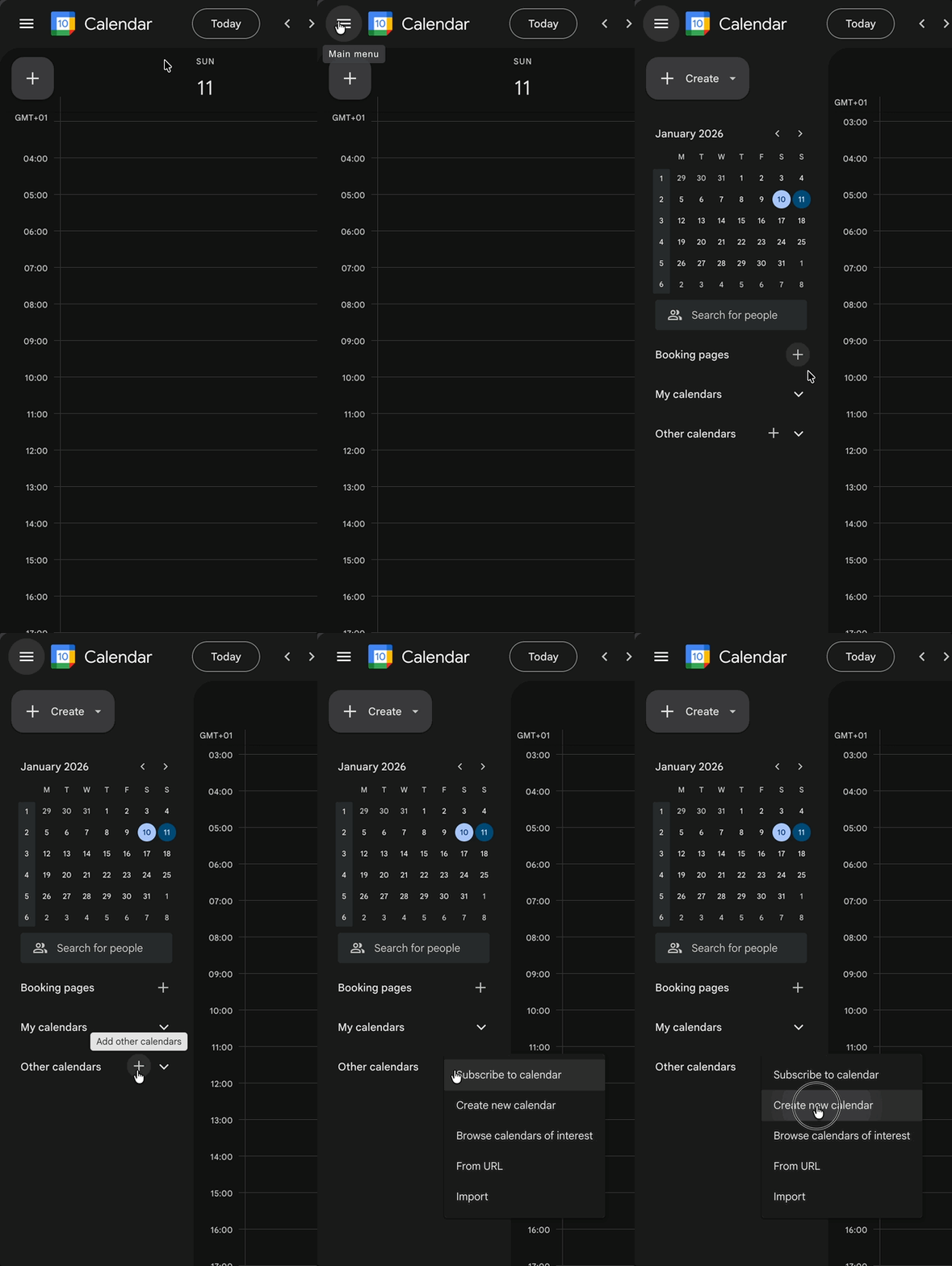
- Go to calendar.google.com
- Open the calendar menu in the left sidebar
- Click the + button next to "Other calendars"
- Select "Create new calendar"
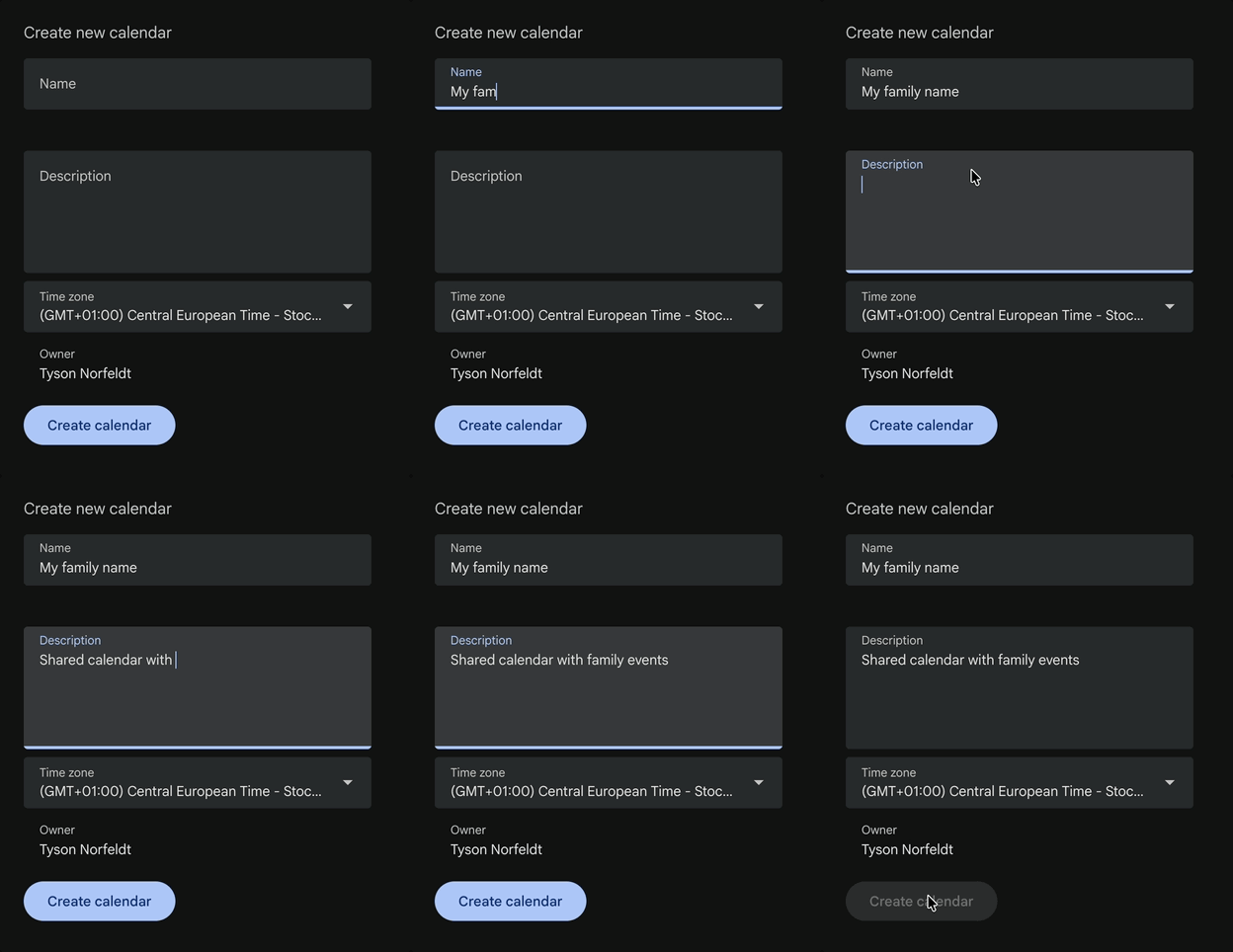
- Name it:
Kids Scheduleoryour children's names - Optionally add a description
- Click Create calendar
Share With Your Co-Parent
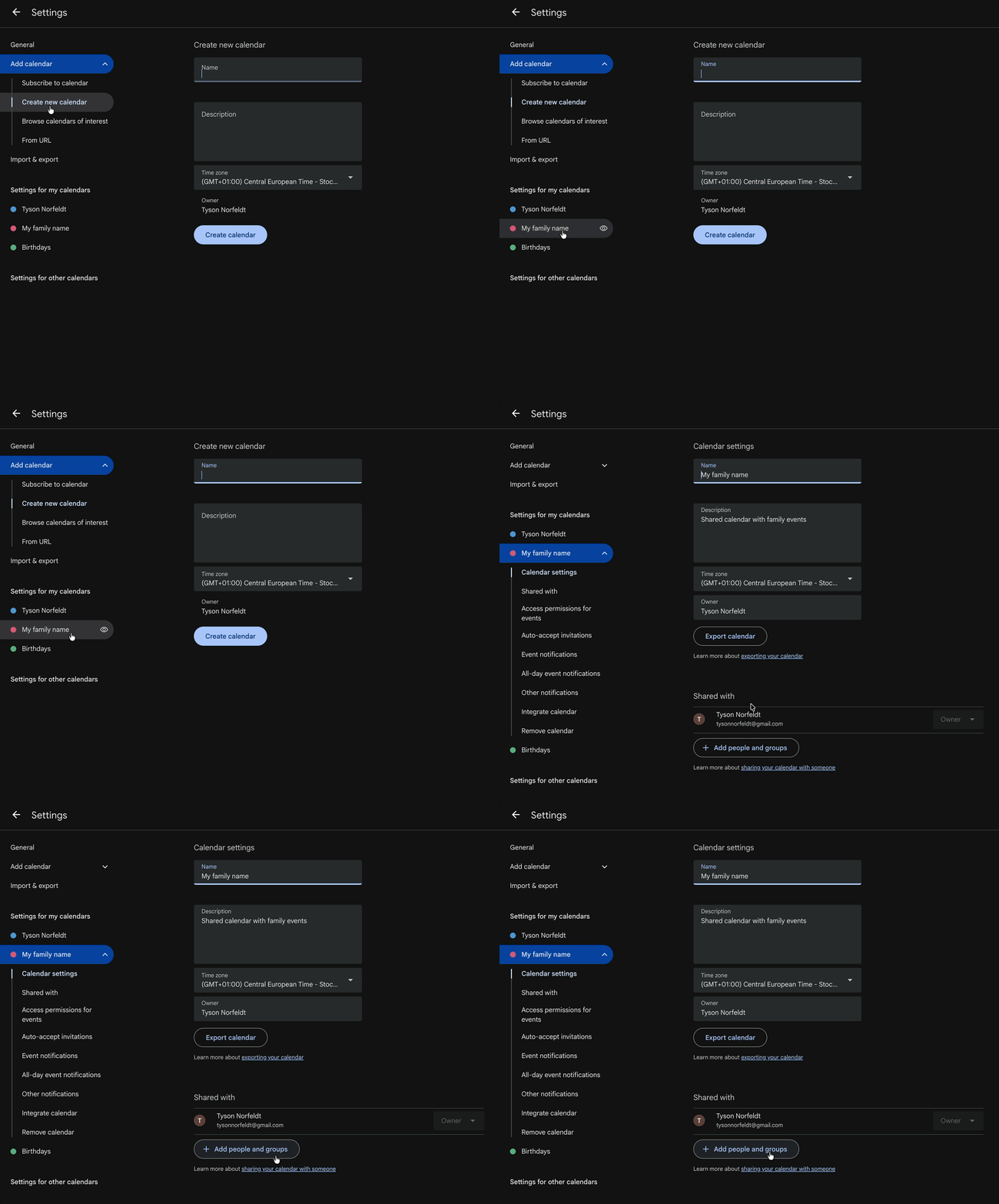
First, get to your calendar settings:
- 1A. If you closed the Settings from Step 1: Click the ⋮ (three dots) next to your calendar in the left sidebar (the dots appear when you hover over it), then select "Settings and sharing".
- 1B. If you're still in Settings from Step 1: Just select your new calendar in the sidebar.
Then share it:
- Click "Share with specific people and groups"
- Enter your co-parent's email address
- Choose the right permission level:
- See all event details — read only
- Make changes to events — read/write
- Make changes and manage sharing — read/write/share
- Click Send
Your co-parent gets an email. Once they accept, the calendar appears on their phone automatically.
You're Now Organized — Here's How to Make It Effortless
With Steps 1 and 2 complete, both homes have access to the same calendar. That alone puts you ahead of most co-parents.
But here's the thing: a calendar buried in an app still gets forgotten.
What if the schedule was just there — on the wall, glanceable, always up-to-date? What if your kids could check it themselves instead of asking "Which house am I at tonight?"
Display at Both Homes
📅 Exchange Days at a Glance
Add custody periods as full-day events. Create recurring all-day events like:
👧👦 Kids at Mom's — repeating every 2 weeks👧👦 Kids at Dad's — repeating every 2 weeks (opposite weeks)
For split weeks, use multi-day spans:
👧👦 Mom's days — Monday to Wednesday👧👦 Dad's days — Thursday to Sunday
🏠 Same Calendar, Both Homes
When the calendar is visible, kids feel more secure. They know what's coming without having to ask.
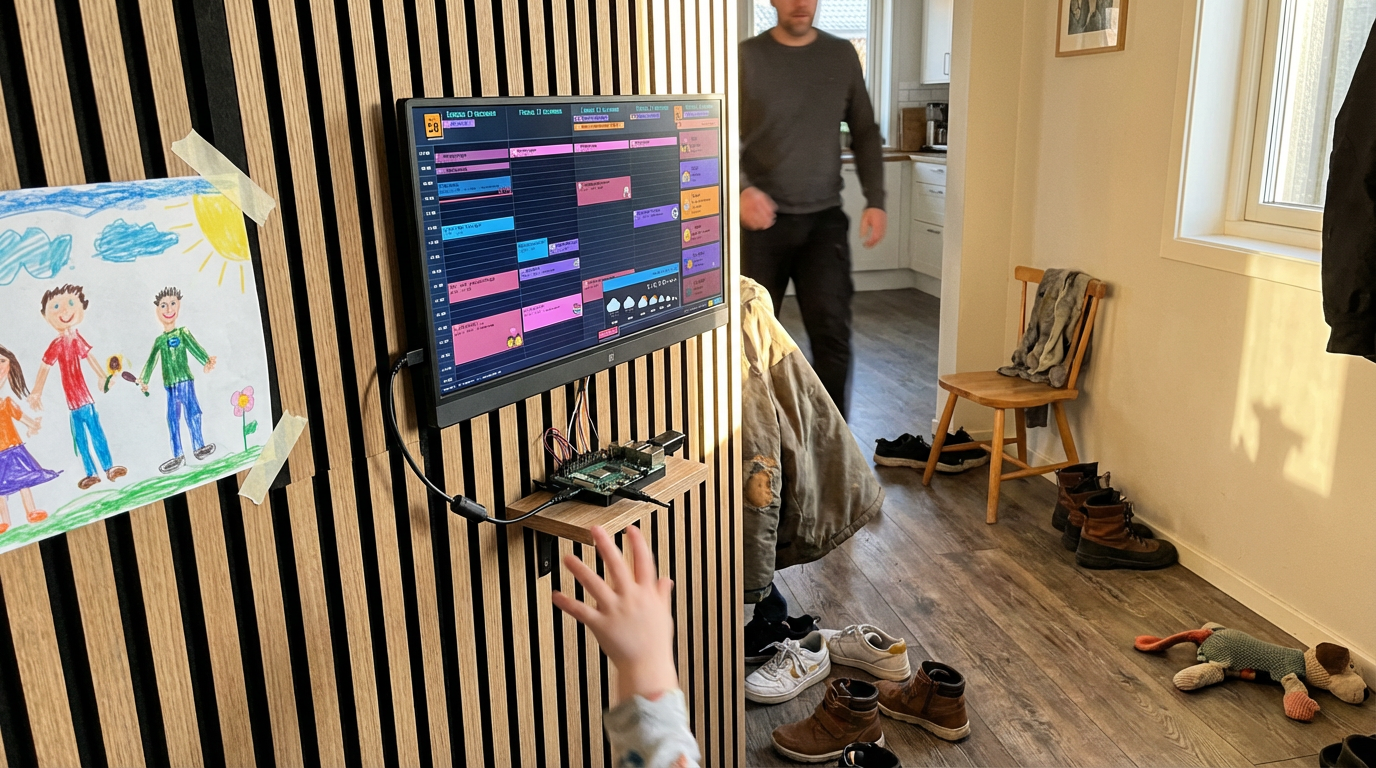
Family Calendar displays your shared Google Calendar on any screen — and both homes can show the same information.
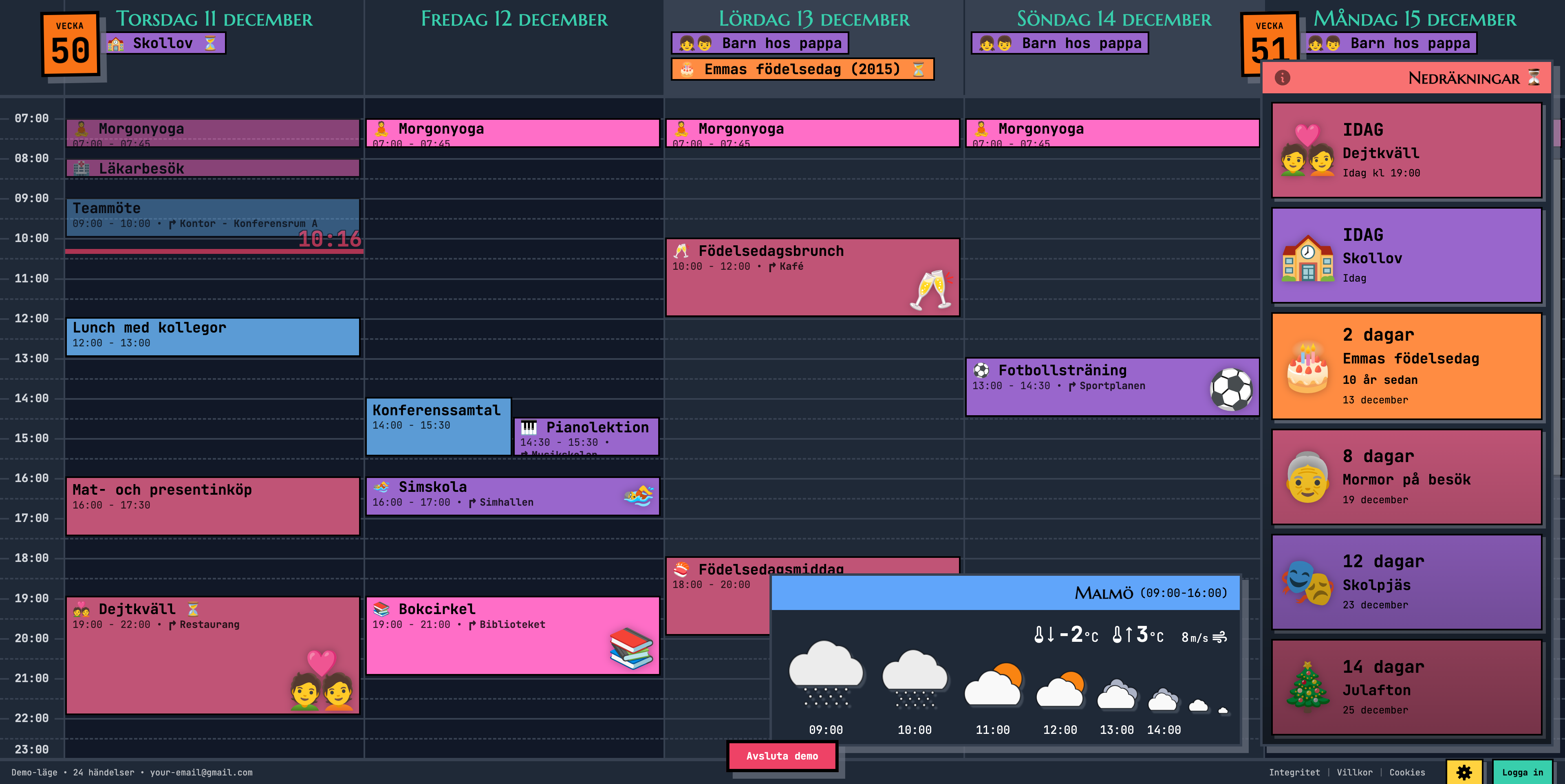
Kids wake up at either house and see the week ahead — same information, zero confusion.
🏠 Same Calendar, Both Homes
When the calendar is visible, kids feel more secure. They know what's coming without having to ask.
Family Calendar displays your shared Google Calendar on any screen — and both homes can show the same information.
Kids wake up at either house and see the week ahead — same information, zero confusion.
🎯 Categorize Events with Emojis — No Color-Coding Required
Forget fiddling with calendar colors. Just add an emoji to any event title and it appears as a large, beautiful visual marker. Swimming lessons become instantly recognizable. School events pop. Date nights stand out.

⏳ Countdown to What Matters
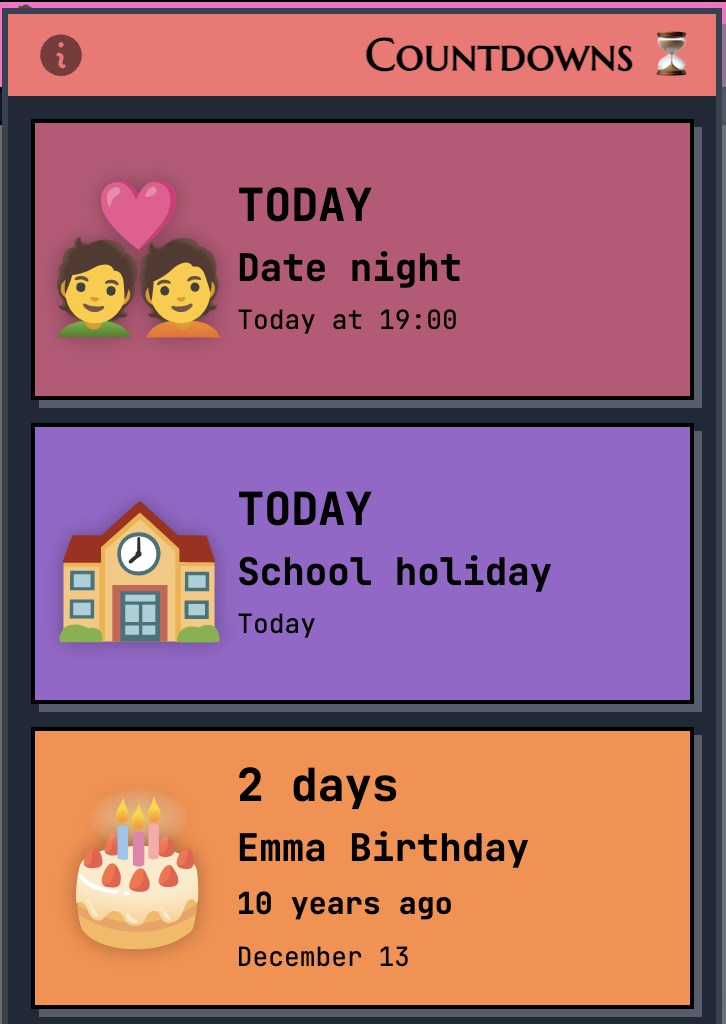
Add the ⏳ emoji to any event and it appears in a countdown sidebar. Birthdays, holidays, vacation days with each parent — everyone always knows what's coming up.
🌤️ Weather at a Glance
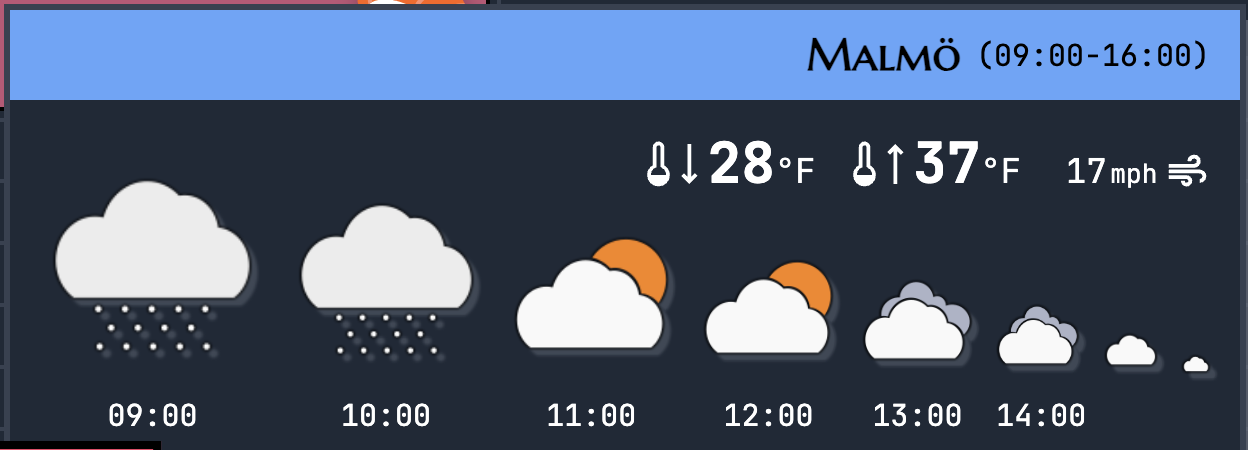
See the forecast right on your calendar. Know whether to pack sunscreen or rain boots before the handoff.
📺 Works on Any Screen
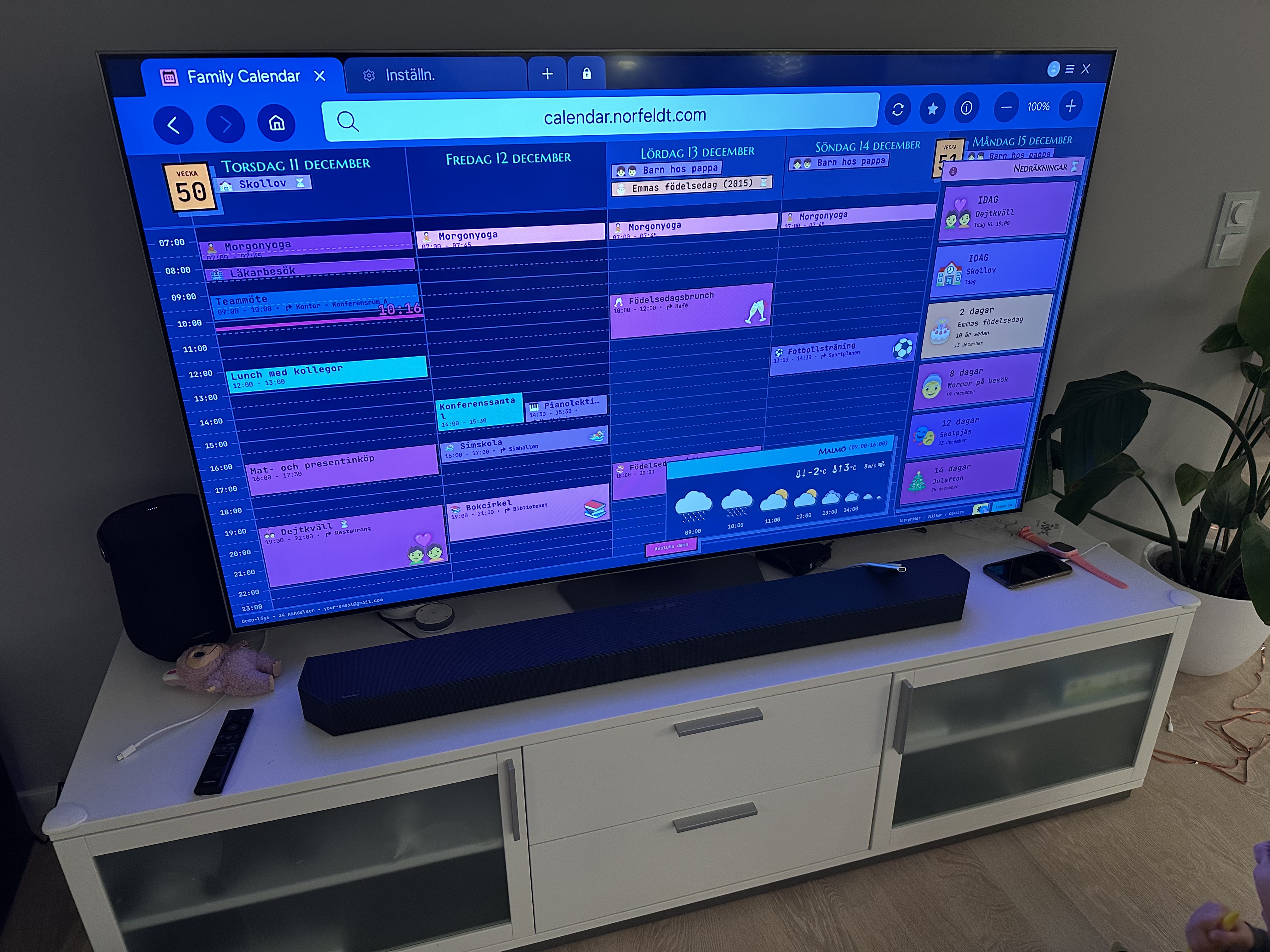
Display your calendar on whatever you have:
- Smart TV — Use the built-in browser on any smart TV
- Old tablet — Repurpose that iPad collecting dust
- Portable monitor + Raspberry Pi — For the tech-savvy parent
Ready to See It in Action?
Head over to calendar.norfeldt.com, connect your Google Calendar, and watch the magic happen.
Great plans — even to just try it out:
Summary (TL;DR)
| Task | How |
|---|---|
| Create shared calendar | calendar.google.com → + → Create new calendar |
| Share with co-parent | Calendar settings → Share with specific people → "Make changes" |
| Add custody schedule | Create all-day event → Repeat every 2 weeks |
| Add activities | Create event → Include location in description |
| Display at both homes | Open calendar.norfeldt.com on any screen |