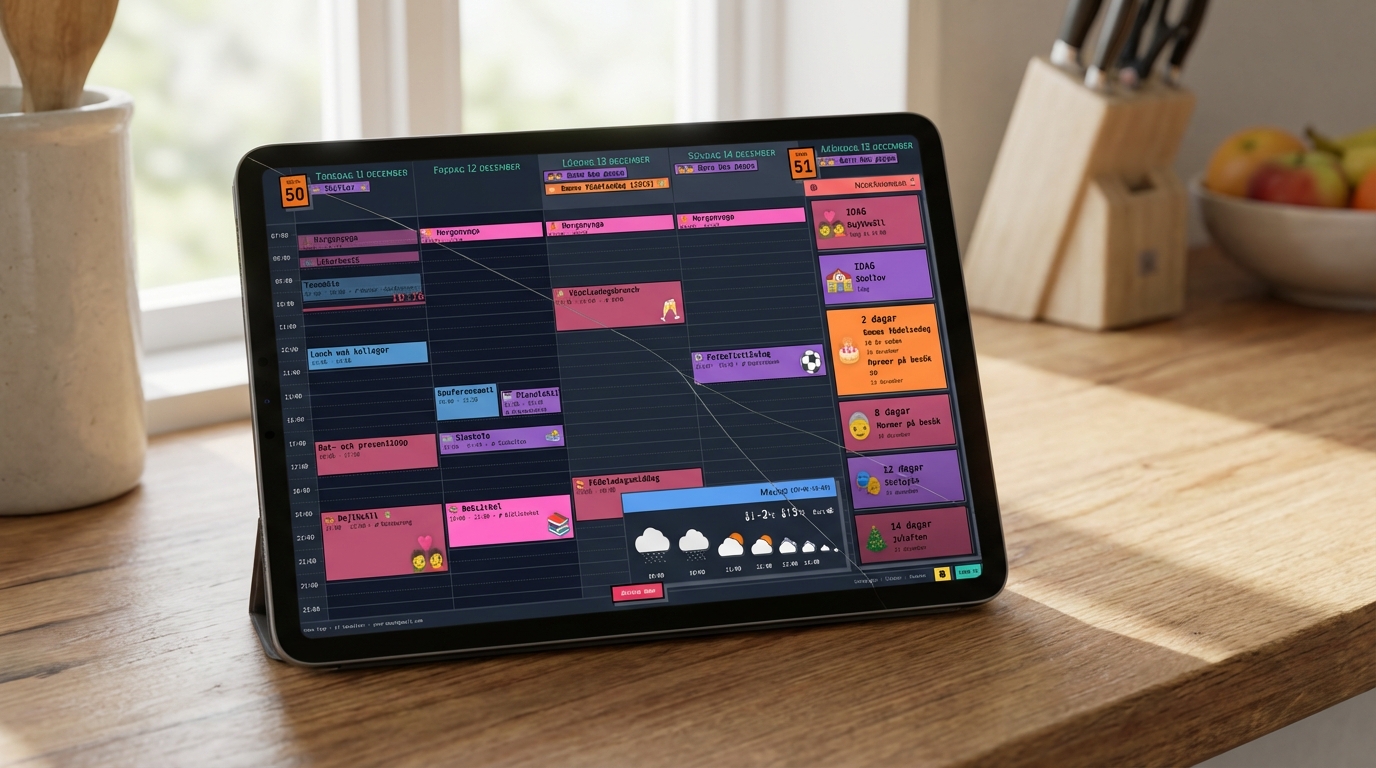
Many families have one. A Samsung tablet the kids abandoned after the novelty wore off. A Lenovo Tab gathering dust in a drawer. A cracked Amazon Fire that's "not worth fixing." Right now, it's doing nothing. In about 10 minutes, it could be the thing your family checks every morning before heading out the door.
What It Looks Like
Family Calendar turns your Google Calendar into a 5-day view designed for exactly this — a dedicated display the whole family can read at a glance:
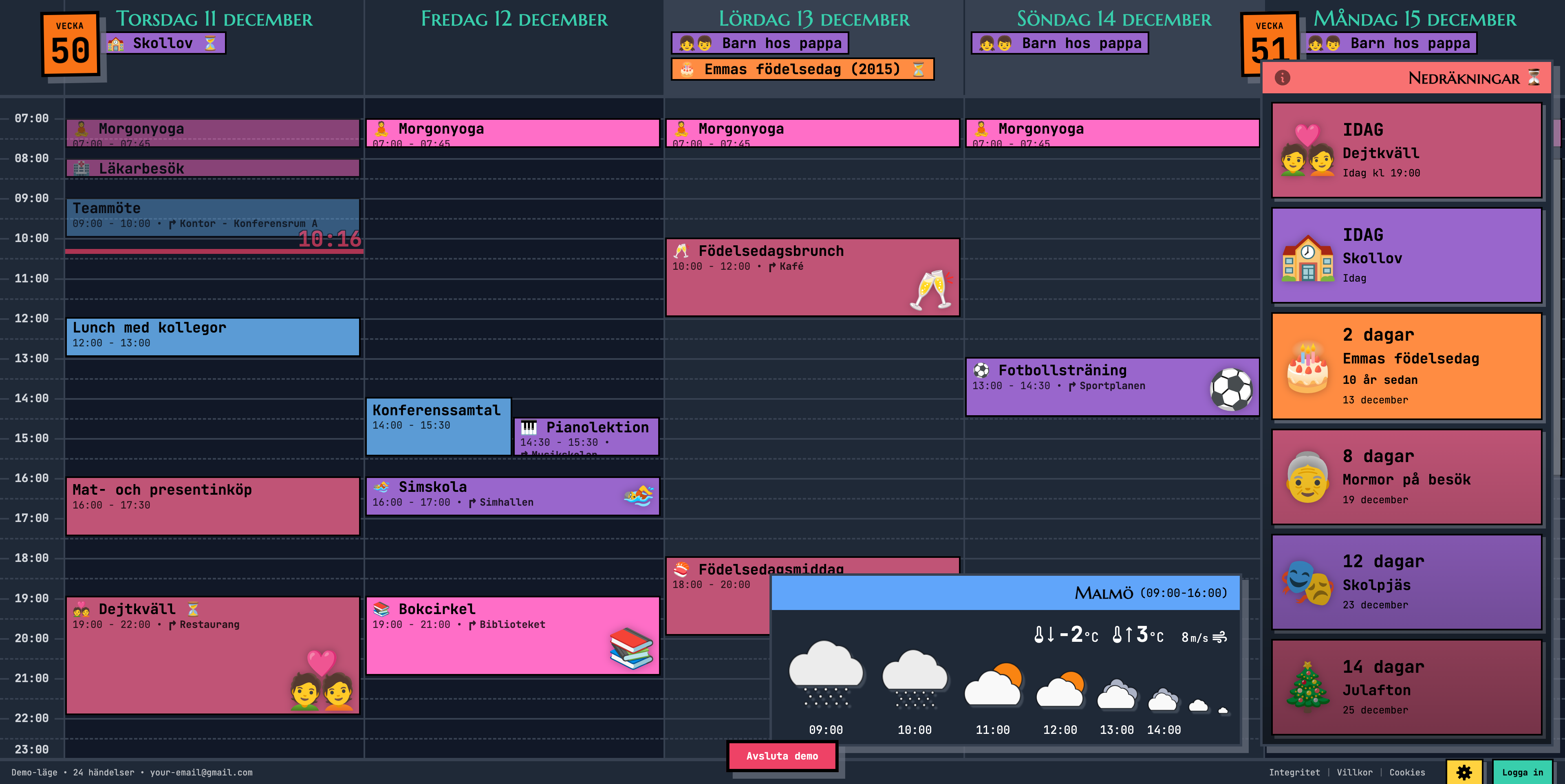
- Emoji events that kids read from across the room — see the soccer ball, know it's soccer day
- Color-coded calendars — Mom's events in purple, Dad's in blue, the kids' in green
- Countdown sidebar — "3 days until grandma visits!" keeps everyone excited
- Weather forecast — check if you need a jacket on the way out
- Auto-refreshes — add an event on your phone, it shows up on the wall within minutes
Inspiration
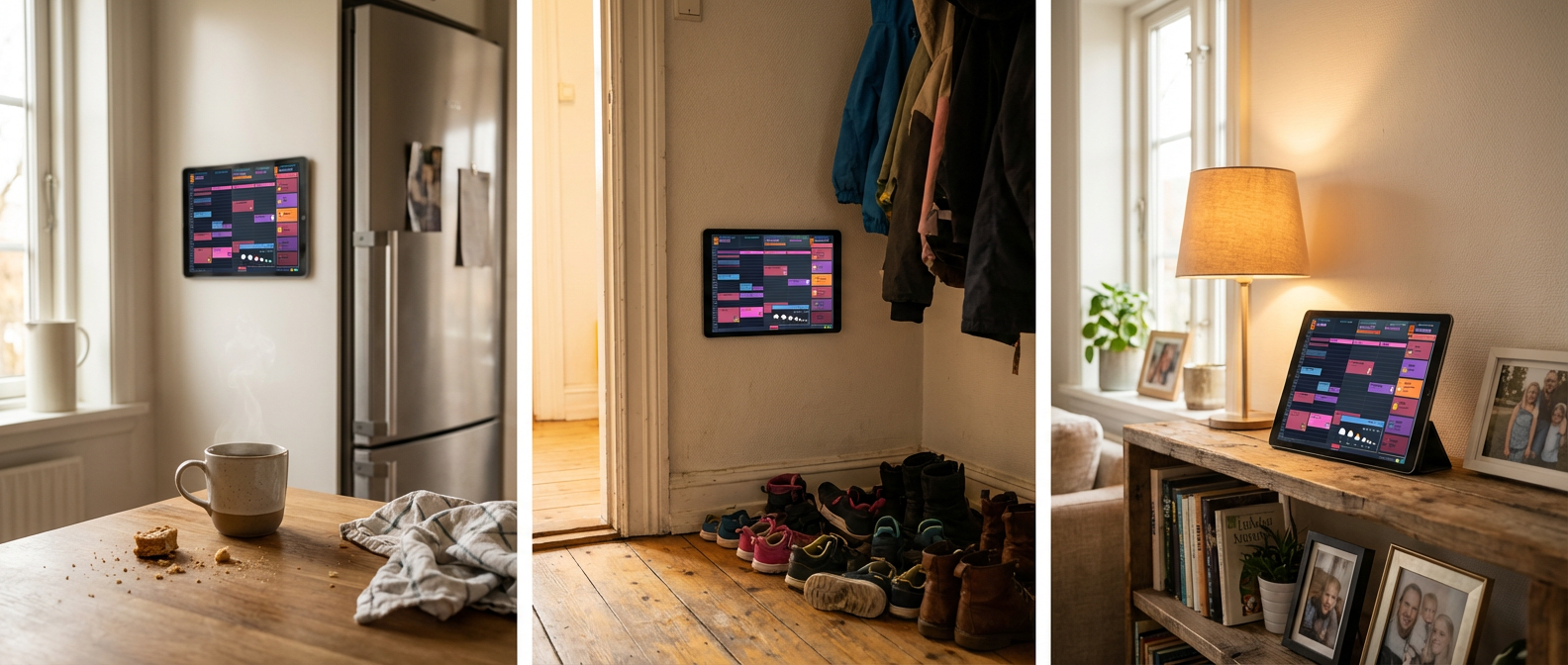
Location matters more than the tablet itself. Put it where your family naturally passes through.
Will My Tablet Work?
If your tablet can open Chrome (or any web browser) and load a website, it can run this calendar. Samsung Galaxy Tab, Lenovo Tab, Amazon Fire — any model from the last 8 years works. Cracked screen? If you can still read the display, it works.
Setup
Open the Calendar in Chrome
- Open Chrome (or Silk Browser on Amazon Fire tablets).
- Go to
calendar.norfeldt.com - Sign in with your Google account.
- Pick your calendars — tap the gear icon, choose which family calendars to show, pick your colors.
Add to Home Screen
This makes the calendar look like a real app — no browser bars, no tabs, just your calendar filling the entire screen.
- Tap the three-dot menu (top right corner).
- Tap "Add to Home screen" (or "Install app" — same thing).
- Tap "Add."
- Go to your Home Screen and open the calendar from the new icon.
That's it — your tablet is now a digital family calendar. The screen even stays on automatically while plugged in. The extras below make it even better.
Get More Out of It
Lock to Landscape
The calendar is designed for landscape mode. Pull down the notification shade and tap Auto-rotate to turn it off so the screen doesn't flip when someone bumps the tablet.
The Screen Stays On Automatically
Family Calendar has a built-in screen wake lock. As long as the calendar is open and the tablet is connected to power, the app automatically keeps the screen from turning off. No settings to change, no workarounds needed — it just works.
You might see other guides suggesting you enable "Stay awake while charging" in Developer Options. With Family Calendar, you don't need that — the app handles it automatically.
Set Up a Night Schedule
Nobody wants a glowing screen in the hallway at 2 AM.
- Go to Settings → Digital Wellbeing → Bedtime mode
- Set your schedule (e.g., 9:00 PM to 6:30 AM)
- Enable "Grayscale" — the screen goes black-and-white, barely noticeable at night
- Enable "Do Not Disturb" so no notifications light up the screen
- Turn on Adaptive brightness (Settings → Display → Adaptive brightness) — dims in dark rooms
Ready to See It in Action?
Head over to calendar.norfeldt.com, connect your Google Calendar, and watch the magic happen.
Great plans — even to just try it out:
Quick Setup Checklist
| What to Do | Time | |
|---|---|---|
| Step 1 | Open calendar.norfeldt.com in Chrome, sign in, pick calendars | 3 min |
| Step 2 | Add to Home Screen for full-screen mode | 1 min |
| Bonus — optional extras | ||
| 🔄 | Lock to landscape in notification shade | 30 sec |
| ✅ | Screen stays on automatically (built-in) | 0 min |
| 🌙 | Set up Bedtime mode for nighttime dimming | 3 min |