Most families know this moment. You're pouring cereal, the kids are half-dressed, someone asks "What time is swimming today?" and nobody knows. Phones get checked, calendars get scrolled, someone yells from another room. It's 7:15 AM and the logistics have already started.
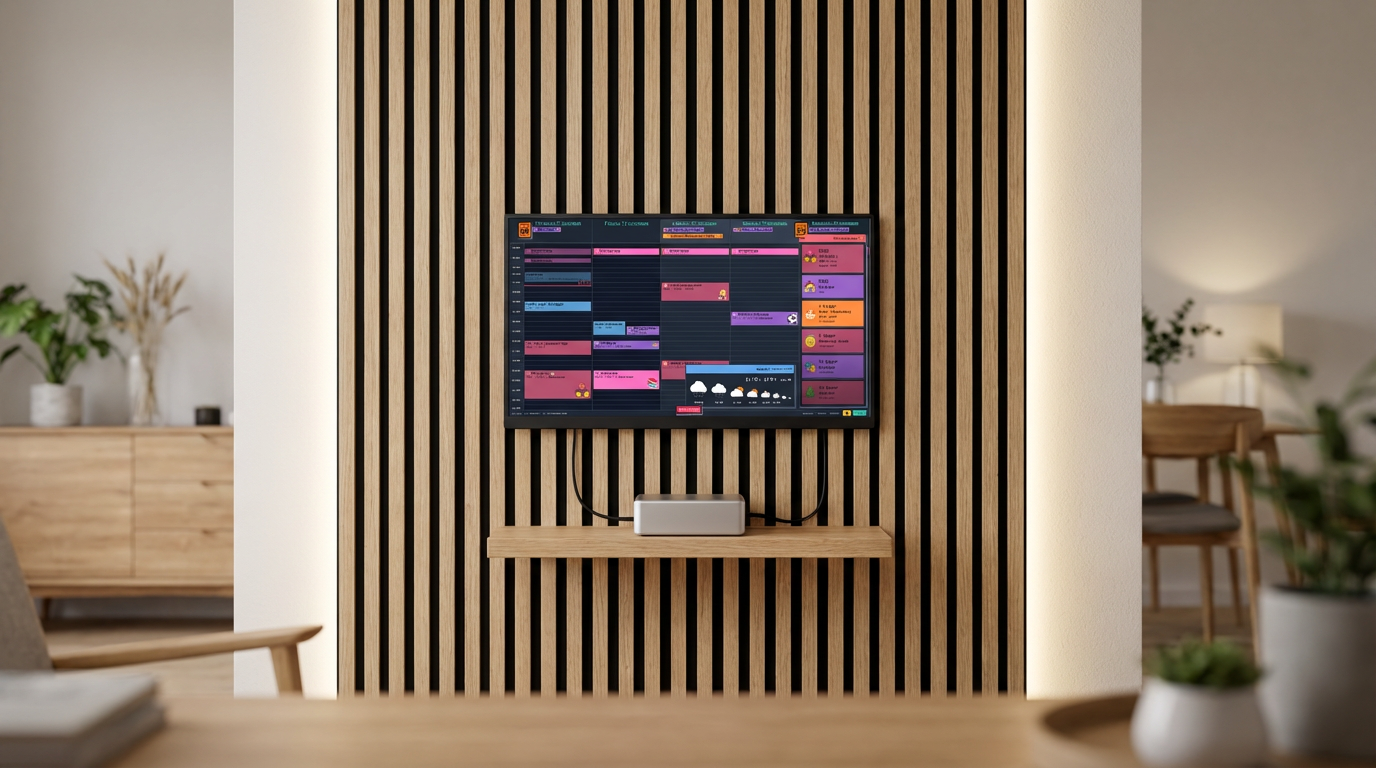
Now picture this instead: there's a monitor on the kitchen counter. The whole week is right there — color-coded, with emoji icons the kids actually understand. No one has to ask, because the answer is on the wall. And it got there using a computer you were about to throw away.
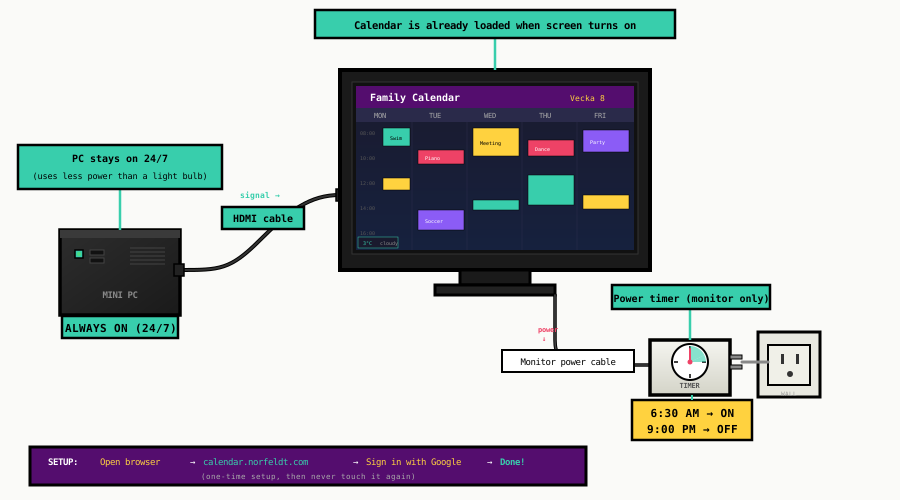
The trick that makes it feel like magic? A cheap power timer on the monitor. The computer stays on 24/7 (it uses less power than a night light). The timer turns the monitor on at 6:30 AM and off at 9 PM. When the screen lights up in the morning, your calendar is already there. No boot sequence, no clicking, no waiting. It's just there.
What You Can Use
Any of these will work. Pick whatever you have lying around:
Old Laptop
Even one with a broken keyboard, dead battery, or cracked screen. You only need it to connect to a monitor and run a browser. Close the lid, stash it behind the monitor.
Most common choice — many families have one
Desktop PC
That tower under the desk from 2015? Still has life in it. Connect a monitor, set the homepage, and tuck the tower away in a cabinet or behind furniture.
Good if you have a spare tower
Mini PC (Intel NUC, Beelink, etc.)
Tiny, silent, and uses barely any power. You can mount it on the back of the monitor with velcro. A used one goes for $40-80 on eBay.
The cleanest setup — nearly invisible
Setup
Open the Calendar
- Connect the monitor to your computer (HDMI, DisplayPort, VGA — whatever works).
- Open Chrome or Firefox and go to
calendar.norfeldt.com - Sign in with your Google account.
- Select your calendars — Click the gear icon, choose which family calendars to show, pick your colors.
Go Full-Screen
Press F11 on Windows or Linux. On Mac, press Ctrl+Cmd+F in Chrome. This hides the browser toolbar, address bar, taskbar — everything. Just your calendar, edge to edge.
That's it — your calendar is on the big screen. The extras below make it a hands-free display that runs itself.
Get More Out of It
Prevent Sleep
You need the computer to stay awake 24/7 so the calendar is always ready when the monitor turns on.
On Windows:
- Open Settings → System → Power & Sleep (or "Power & Battery" on Windows 11).
- Set "When plugged in, turn off screen after" to Never.
- Set "When plugged in, put device to sleep after" to Never.
On Mac:
- Open System Settings → Energy (or "Energy Saver" on older Macs).
- Set "Turn display off after" to Never.
- Enable "Prevent automatic sleeping when the display is off."
On Linux:
- Open Settings → Power.
- Set "Blank Screen" to Never.
- Set "Automatic Suspend" to Off.
Close the Lid (Laptops Only)
If you're using a laptop with an external monitor, you can close the lid and stash it out of sight. The laptop keeps running, and only the monitor shows the calendar.
On Mac: Just close the lid while the laptop is plugged into power and connected to the external monitor. macOS automatically keeps running — no settings needed. This is called "clamshell mode."
On Windows:
- Open Control Panel → Hardware and Sound → Power Options.
- Click "Choose what closing the lid does" in the left sidebar.
- Set "When I close the lid" to "Do nothing" (for both "On battery" and "Plugged in").
Where to stash it: Behind the monitor, on a shelf, inside a cabinet with ventilation, or even in a drawer (just leave it slightly open for airflow).
Set the Homepage and Auto-Start
When the computer restarts (after a power outage or Windows update), the calendar should come right back.
Set the homepage:
- In Chrome: Settings → On startup → Open a specific page → add
calendar.norfeldt.com - In Firefox: Settings → Home → Homepage and new windows → enter
calendar.norfeldt.com
Auto-start the browser on boot:
Windows: Press Win+R, type shell:startup, and press Enter. Create a shortcut to Chrome in this folder.
Mac: Go to System Settings → General → Login Items → add Chrome (or Firefox).
Linux: Add Chrome to your desktop environment's Startup Applications.
Disable Browser Distractions
| Setting | Why | How |
|---|---|---|
| Disable notifications | No popups covering the calendar | Chrome Settings → Privacy → Notifications → Block all |
| Disable auto-updates | Prevents "Chrome needs to restart" dialogs | OS settings (varies by system) |
| Block pop-ups | No surprise windows | Chrome Settings → Privacy → Pop-ups → Block |
| Set as default browser | Avoids "Make Chrome default?" prompts | OS settings |
The Power Timer Trick
This is the part that makes the whole setup feel like magic.
Here's the idea: the computer stays on 24/7 — it uses barely any electricity (less than a night light). But the monitor is on a power timer. A timer that you plug into the wall outlet, and then plug the monitor into.
- Timer turns monitor ON at 6:30 AM — the screen lights up, and your calendar is instantly there. No boot time, no loading. It was running the whole time; the screen was just off.
- Timer turns monitor OFF at 9:00 PM — the screen goes dark for bedtime. The computer keeps running behind the scenes.
No buttons to press. No apps to open. No one has to remember to do anything. The calendar is just there every morning when the family wakes up, and gone when it's time for bed.
Mechanical Timer (~$8)
- Available at any hardware store
- Twist the dial, flip the tabs
- No Wi-Fi, no app, no batteries
- Works forever — nothing to break
- Same schedule every day
Smart Plug (~$15)
- TP-Link Kasa, IKEA Tradfri, etc.
- Set schedules from your phone
- Different weekday/weekend times
- Adjust seasonally (earlier in winter)
- Can integrate with smart home
Where to Put It
The best spot is wherever your family naturally gathers or passes through during the daily routine.
Kitchen
The family command center. A monitor on the counter or mounted on the wall where a paper calendar would go. Everyone sees the week at breakfast.
Hallway
Last thing you see on the way out. "Oh, swimming at 4 — I need the bag." Catches you at exactly the right moment.
Home Office
A second monitor dedicated to the family schedule. Glance over while on a work call to check if you need to leave for pickup.
Electricity Cost
This is cheaper than you'd think:
| Component | Power | Hours/Day | Monthly Cost |
|---|---|---|---|
| Monitor (on timer) | 15-30W | ~14 hrs | $1-2 |
| Computer (always on) | 10-30W idle | 24 hrs | $1-3 |
| Total | ~$2-5/month | ||
Based on US average electricity rates (~$0.16/kWh). Mini PCs are on the lower end.
What Shows on the Screen
This is where the bigger screen really pays off. A monitor is a fundamentally different experience from a tablet or phone — and the calendar is designed for it.
Family Calendar takes your Google Calendar and turns it into a 5-day view that fills the entire display:
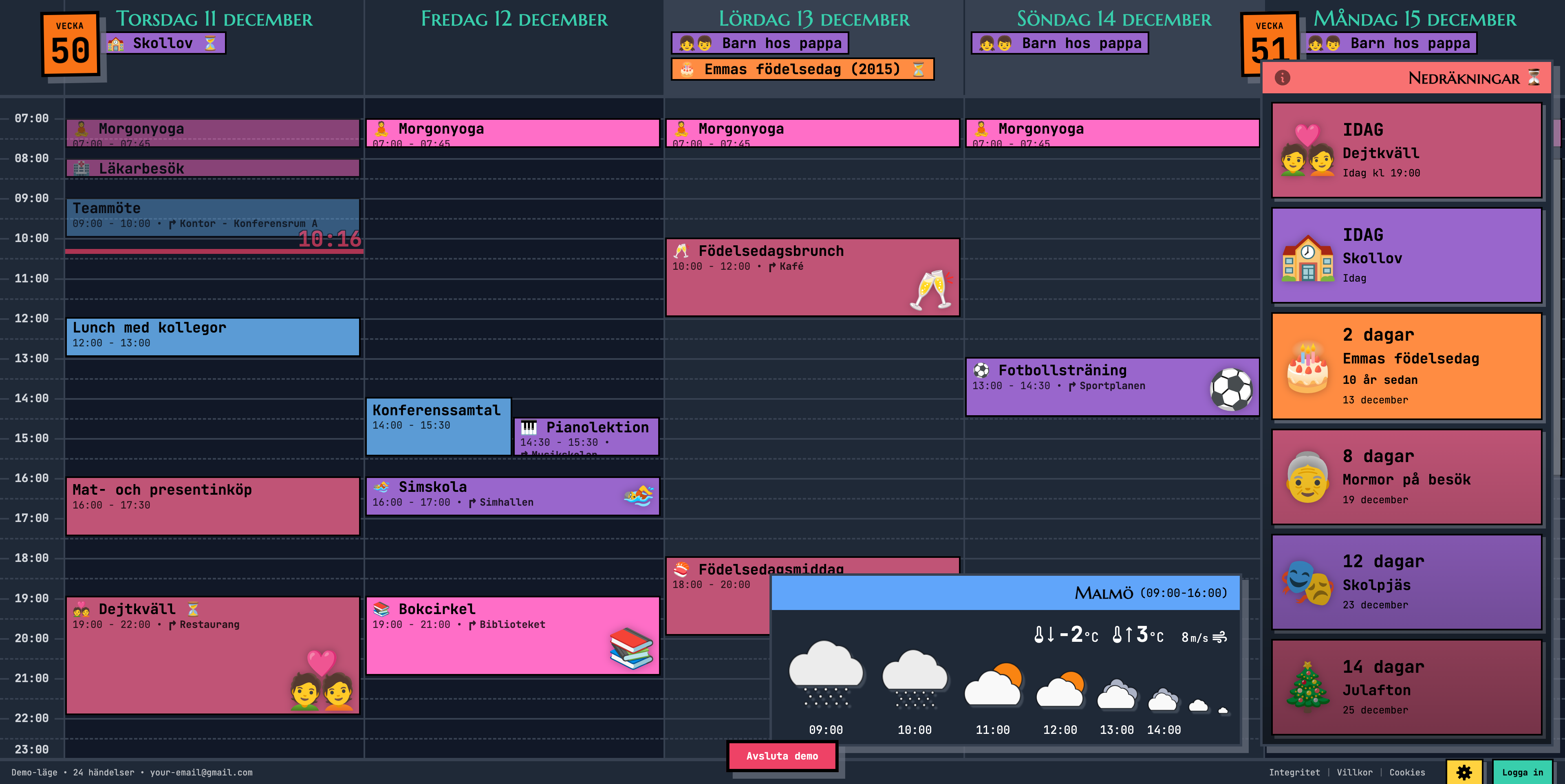
- Emoji events visible from 10 feet away — on a big screen, your kids spot the soccer ball or piano emoji without getting off the couch. No squinting, no walking up to the display.
- The whole week at a glance — five full days of your family's schedule, color-coded per person, all visible simultaneously. On a monitor, nothing feels cramped.
- Countdown sidebar — "3 days until grandma visits!" big enough that the kids read it themselves and start the excitement.
- Weather forecast — check if you need a jacket on the way out, visible from the breakfast table.
- Auto-refreshes — add an event on your phone, it appears on the monitor within minutes. No sync buttons, no manual refresh.
Connect your Google Calendar once, and the display stays up-to-date automatically. The whole family adds events from their phones — the monitor just shows everything, all the time, big enough for the whole room to see.
Ready to See It in Action?
Head over to calendar.norfeldt.com, connect your Google Calendar, and watch the magic happen.
Great plans — even to just try it out:
Quick Setup Checklist
| What to Do | Time | |
|---|---|---|
| Step 1 | Connect monitor, open browser, go to calendar.norfeldt.com, sign in | 5 min |
| Step 2 | Press F11 for full-screen mode | 10 sec |
| Bonus — optional extras | ||
| 💤 | Disable sleep in power settings | 2 min |
| 💻 | Close laptop lid / hide the PC | 2 min |
| 🔁 | Set homepage + auto-start browser on boot | 3 min |
| 🔕 | Disable browser notifications and distractions | 2 min |
| ⏰ | Plug monitor into power timer | 2 min |