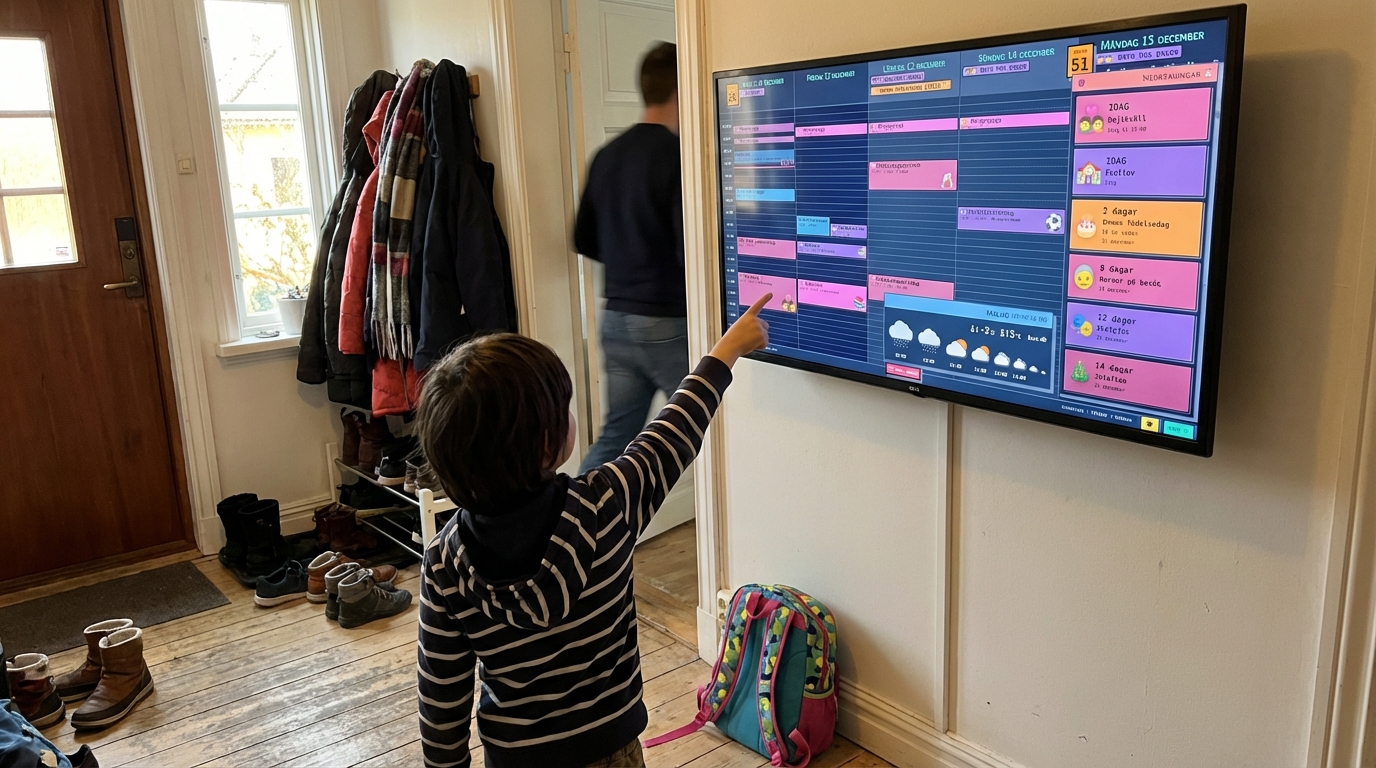
This guide shows you how to create a shared Google Calendar in under 2 minutes. Once set up, everyone in your family can add events from their phone — and you'll finally stop asking "Wait, what time is soccer practice?"
Create a New Google Calendar
Don't share your personal calendar. Create a dedicated one for family events.
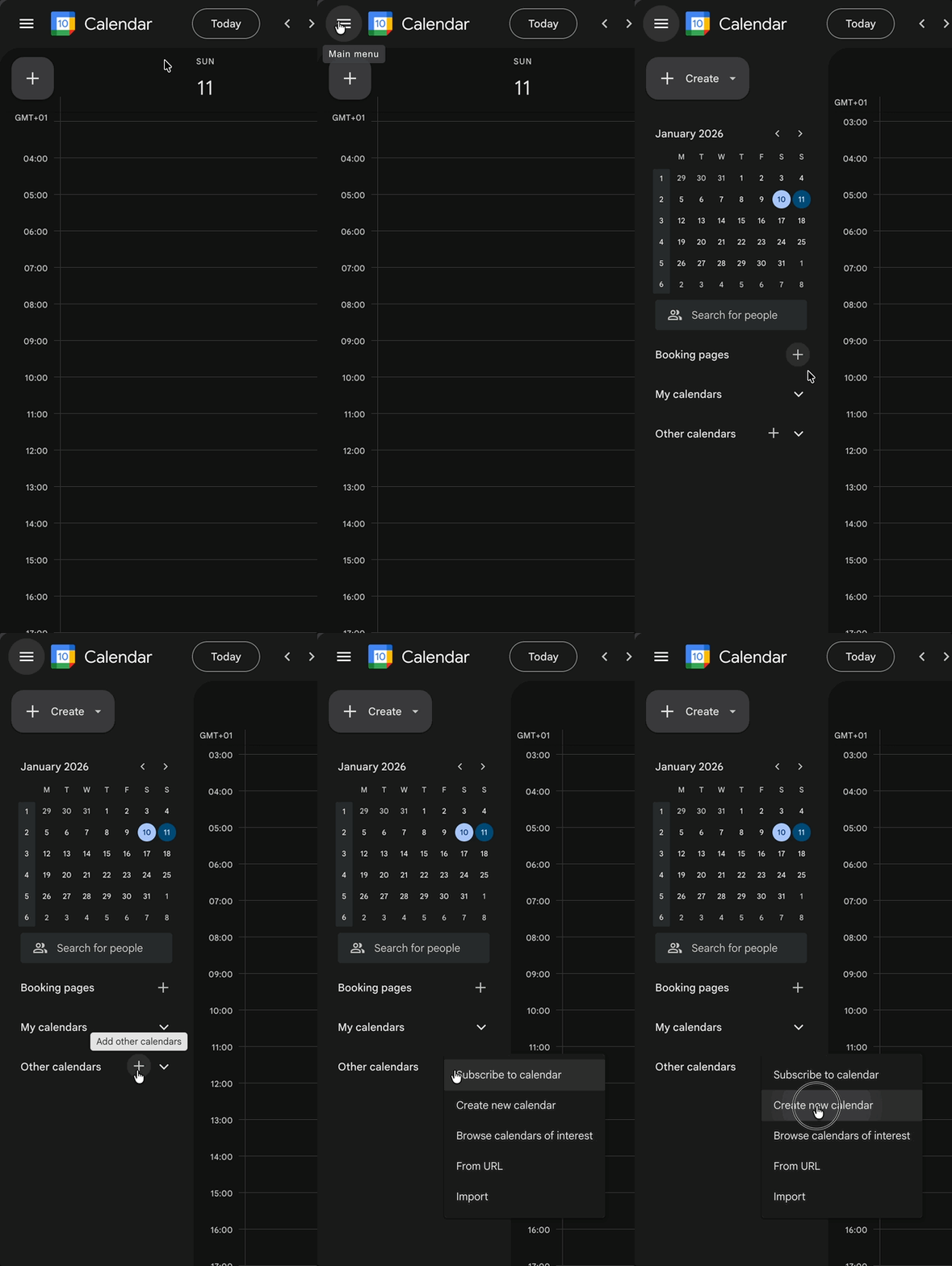
- Go to calendar.google.com
- Open the calendar menu in the left sidebar
- Click the + button next to "Other calendars"
- Select "Create new calendar"
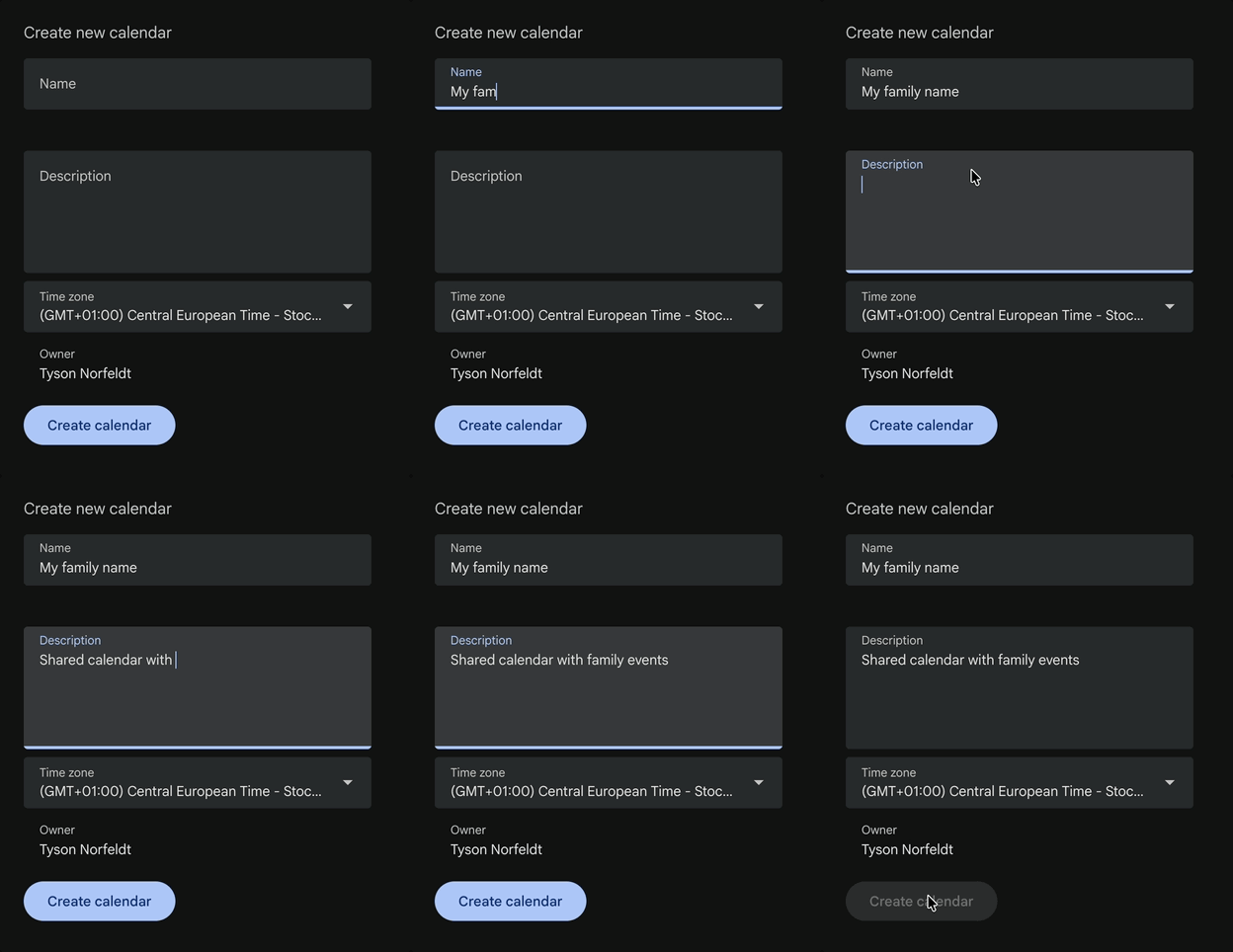
- Name it:
Family,Family (shared)oryour family surname - Optionally add a description
- Click Create calendar
Share the Google Calendar with Others
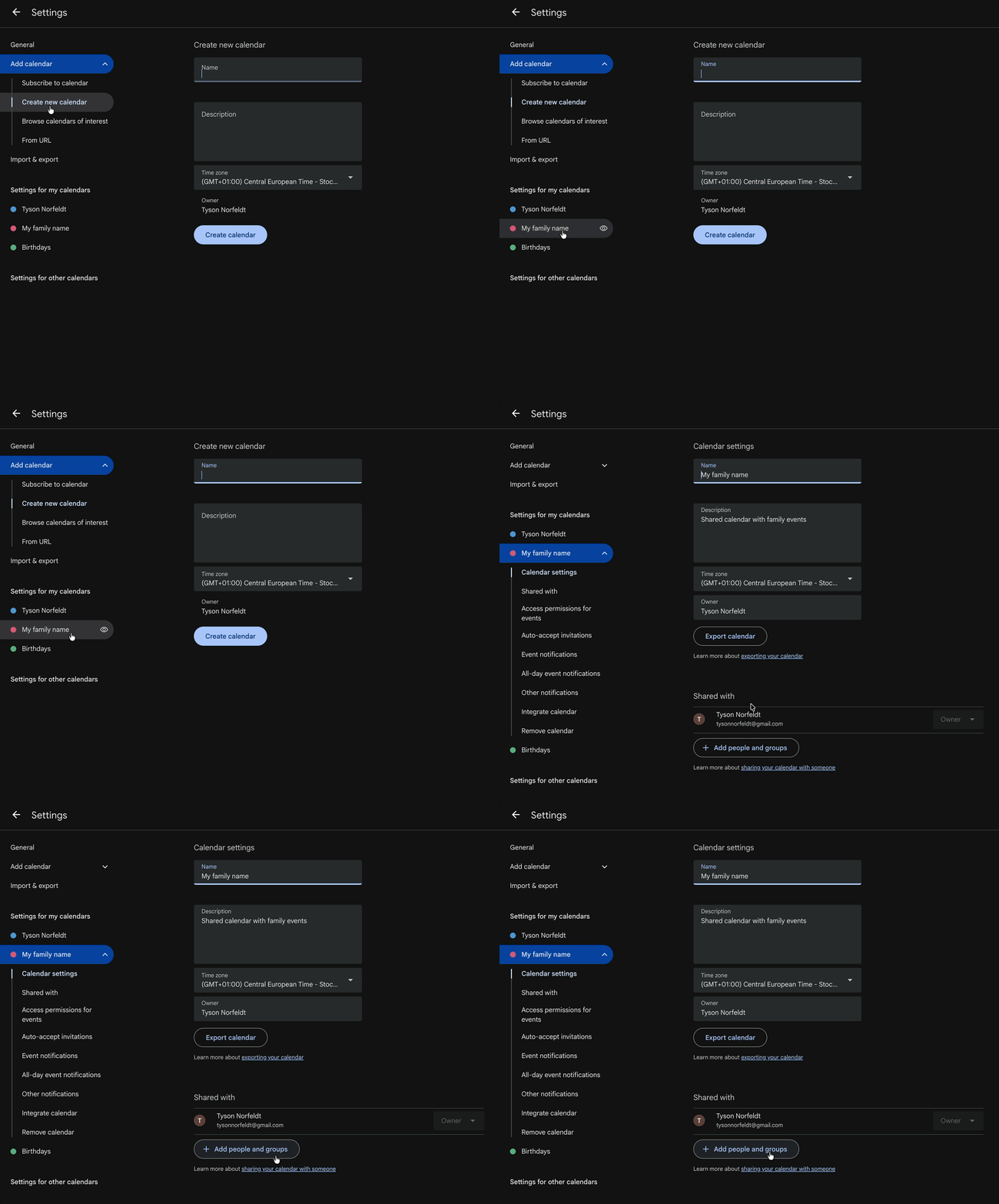
First, get to your calendar settings:
- 1A. If you closed the Settings from Step 1: Click the ⋮ (three dots) next to your calendar in the left sidebar (the dots appear when you hover over it), then select "Settings and sharing".
- 1B. If you're still in Settings from Step 1: Just select your new calendar in the sidebar.
Then share it:
- Click "Share with specific people and groups"
- Enter each family member's email address
- Choose the right permission level:
- See all event details — read only
- Make changes to events — read/write
- Make changes and manage sharing — read/write/share
- Click Send
Each person gets an email. Once they accept, the calendar appears on their phone automatically.
You're Now Organized — Here's How to Make It Effortless
With Steps 1 and 2 complete, your family has a shared calendar. Everyone can add events from their phone. That alone puts you ahead of most families.
But here's the thing: a calendar buried in an app still gets forgotten.
What if the schedule was just there — on the wall, glanceable, always up-to-date? What if your kids could check it themselves instead of asking you five times?
Display Your Calendar Where Everyone Can See It
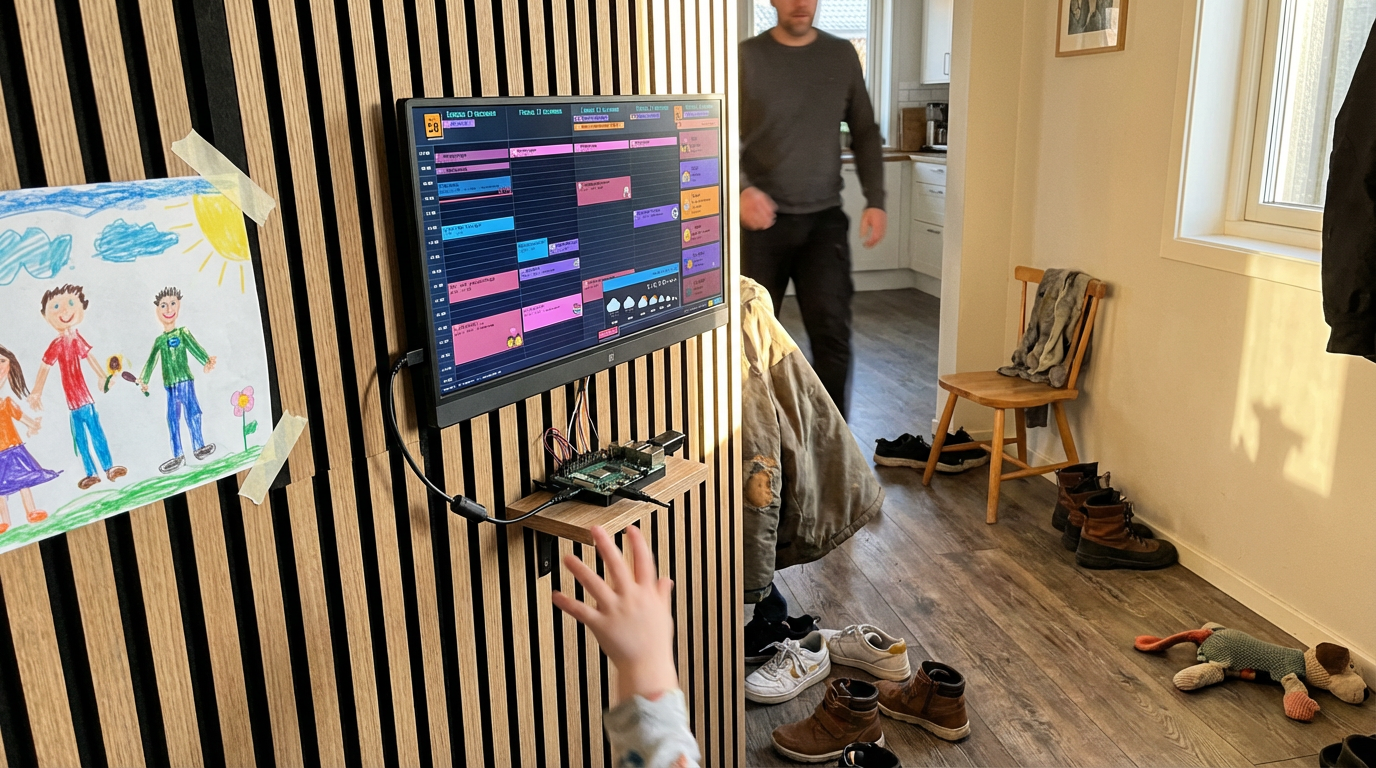
Family Calendar transforms your Google Calendar into a beautiful always-on display.
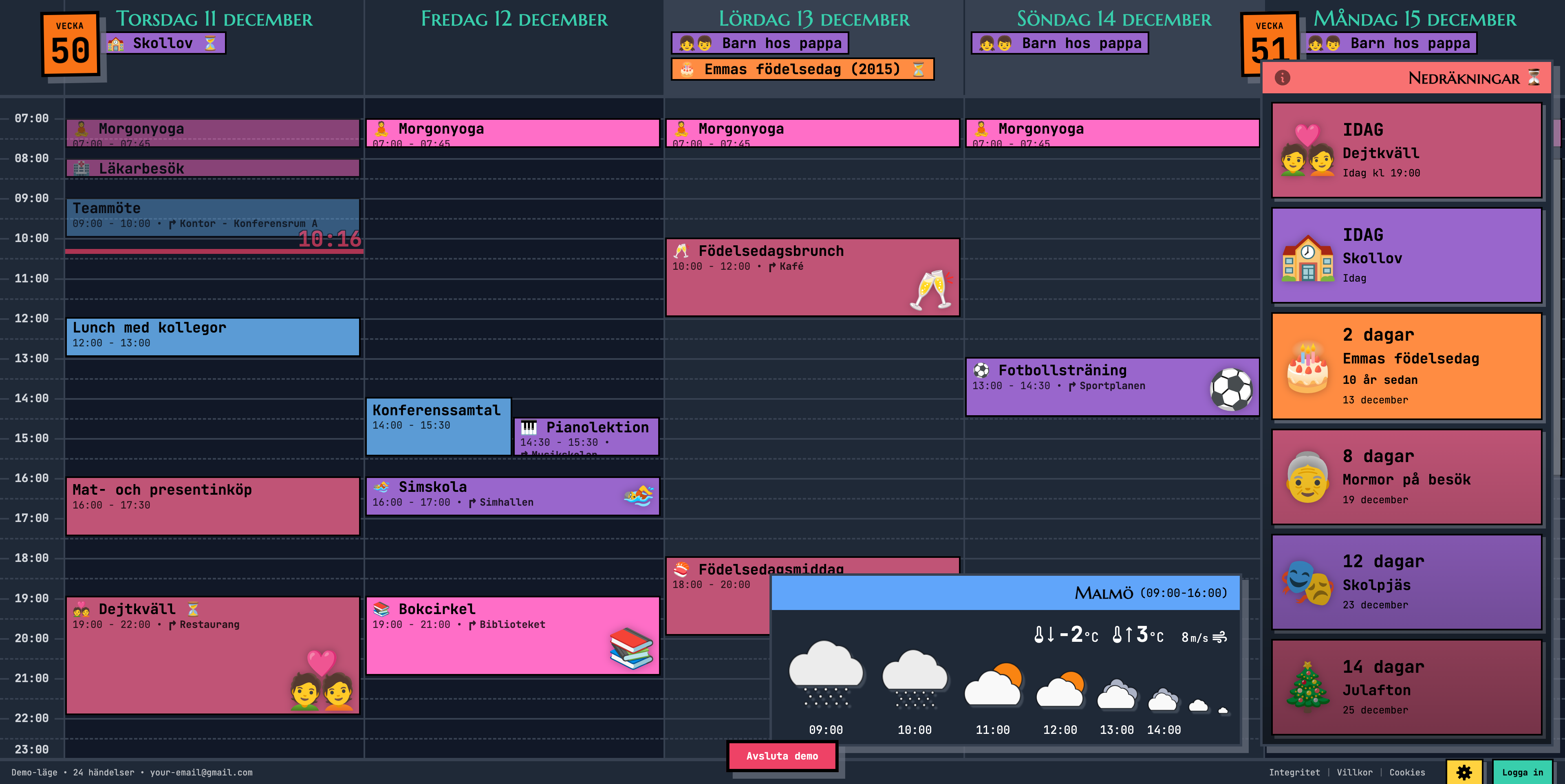
Here's what makes it different:
🎯 Categorize Events with Emojis — No Color-Coding Required
Forget fiddling with calendar colors. Just add an emoji to any event title and it appears as a large, beautiful visual marker. Swimming lessons become instantly recognizable. School events pop. Date nights stand out.

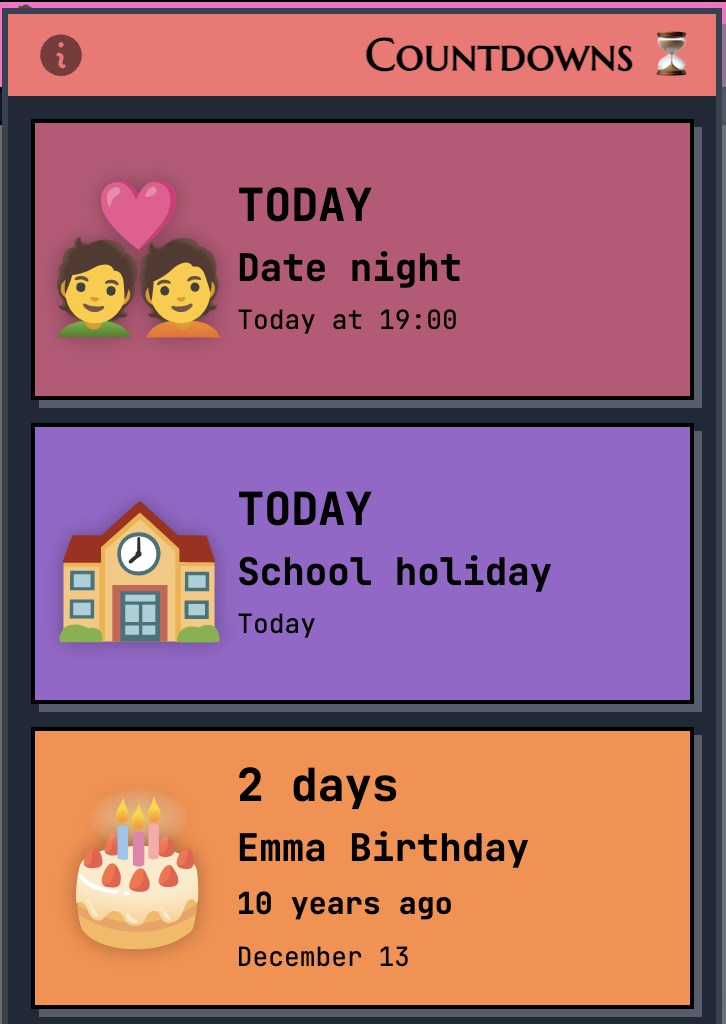
⏳ Countdown to What Matters
Add the ⏳ emoji to any event and it appears in a countdown sidebar. Birthdays, holidays, vacation — your family always knows what's coming up.
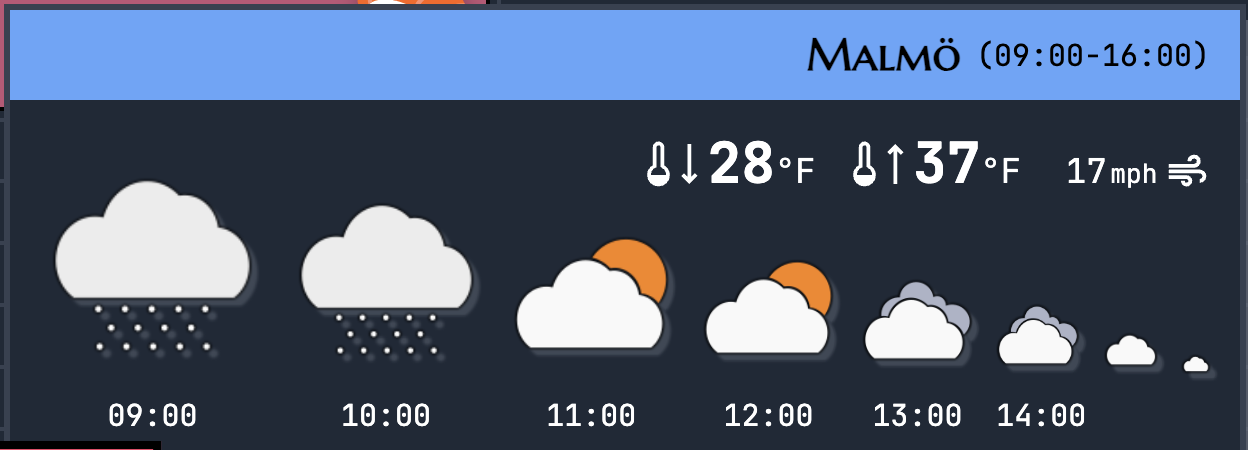
🌤️ Weather at a Glance
See the forecast right on your calendar. Know whether to pack sunscreen or rain boots before anyone asks.
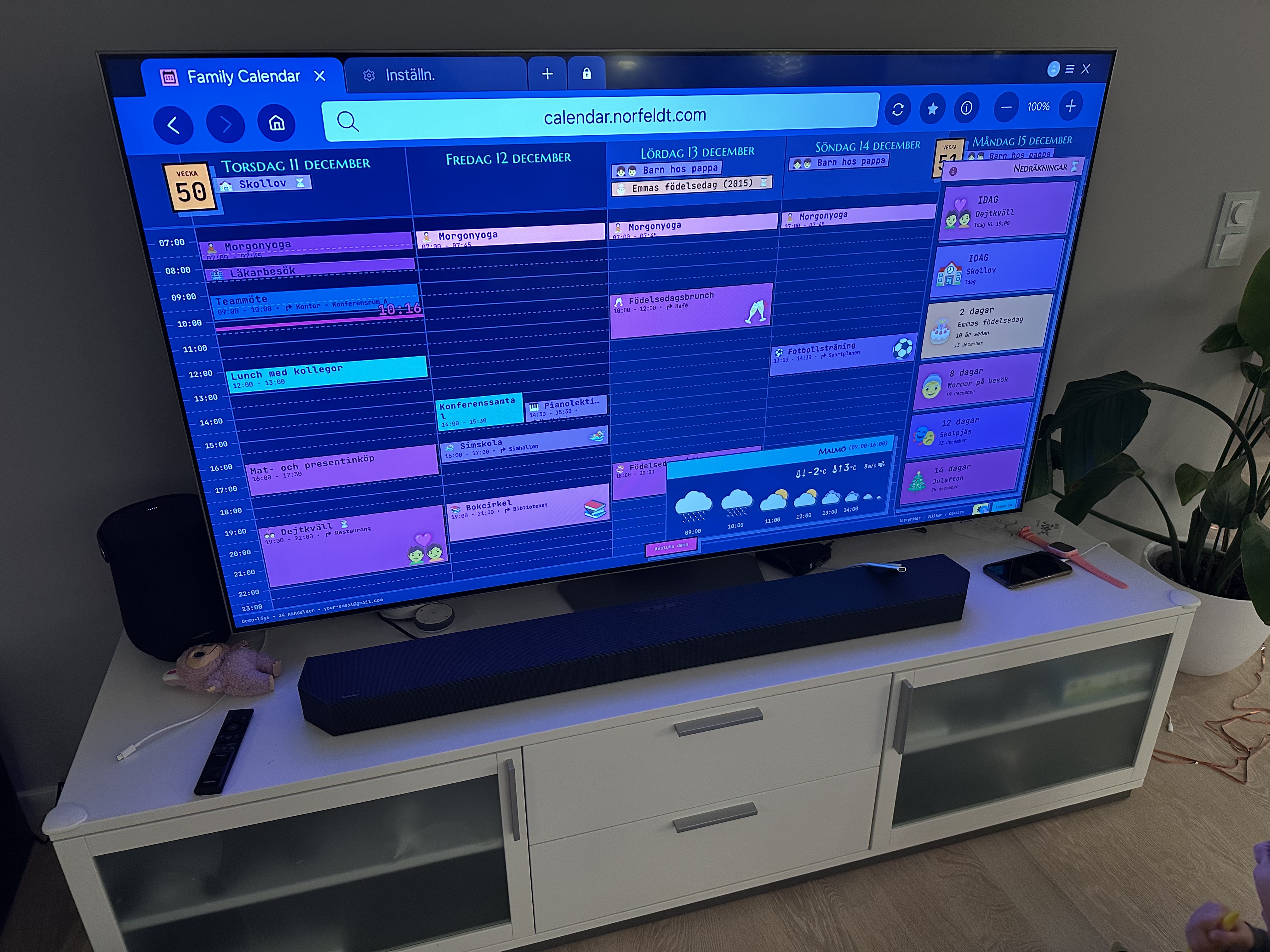
📺 Works on Any Screen
Display your calendar on whatever you have:
- Smart TV — Use the built-in browser on any smart TV
- Old tablet — Repurpose that iPad collecting dust
- Portable monitor + Raspberry Pi — For the tech-savvy family
Ready to See It in Action?
Head over to calendar.norfeldt.com, connect your Google Calendar, and watch the magic happen.
Great plans — even to just try it out:
Summary (TL;DR)
| Task | How |
|---|---|
| Create calendar | calendar.google.com → + → Create new calendar |
| Share calendar | Calendar settings → Share with specific people |
| Add emoji to event | Include emoji in event title (e.g., "🏊 Swimming") |
| Add countdown | Include ⏳ in event title |
| Display on TV | Open calendar.norfeldt.com in your TV's browser |