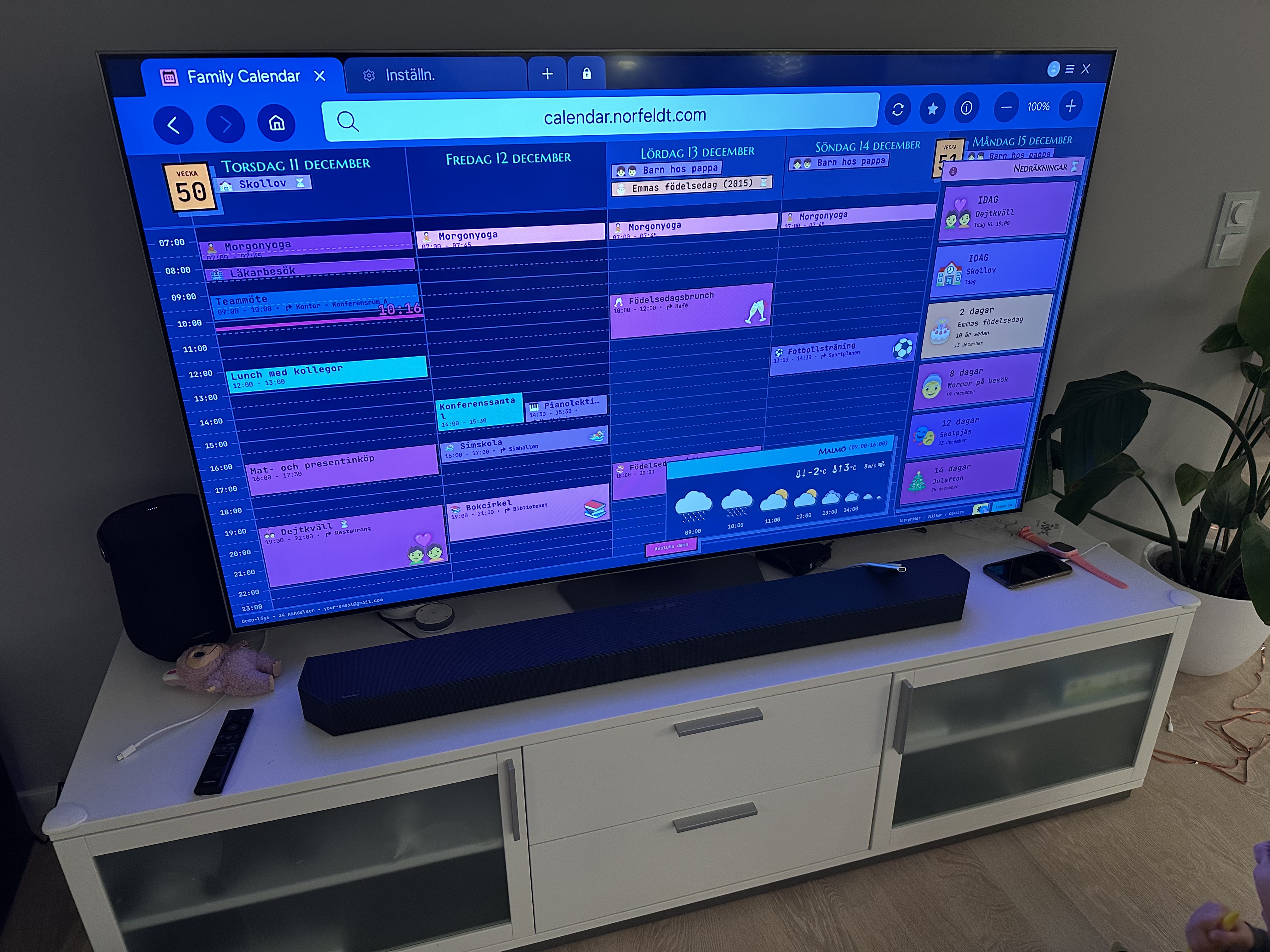
Imagine walking into the kitchen and seeing everyone's entire week on the big screen. Soccer at 4, dentist on Wednesday, grandma's birthday in 3 days — all visible from across the room, without anyone pulling out their phone.
Your smart TV already has everything it needs: a web browser. Five minutes from now, your family calendar can be on the biggest screen in the house. No extra hardware, no apps to buy, no cables to run.
Setup
Find the Browser on Your TV
Every major smart TV brand has a built-in web browser. Here's where to find yours:
Samsung TV:
- Press the Home button on your remote.
- Navigate to "Internet" (or "Samsung Internet") in the app bar.
- If you don't see it, go to Apps and search for "Internet."
LG TV (webOS):
- Press the Home button on your remote.
- Find "Web Browser" in the app row at the bottom.
- If it's not there, open the LG Content Store and search for "Web Browser."
Android TV / Google TV (Sony, TCL, Hisense, etc.):
- There's usually no browser pre-installed. Open the Google Play Store.
- Search for "Puffin TV Browser" or "Chrome" and install it.
- Open the browser and you're ready.
Open and Bookmark Your Calendar
- Open the browser on your TV.
- Type in the address bar:
calendar.norfeldt.com - Sign in with your Google account. (This is the slowest part — typing with a remote takes patience.)
- Bookmark it — every TV browser has a bookmark or favorites option. One click to get back next time.
- Select your calendars — tap the gear icon, choose which family calendars to show, pick your colors.
That's it — your family calendar is on the big screen. A few things to keep in mind about TV browsers:
- Navigation is remote-based — you're clicking with arrow keys, not swiping. Once the calendar is bookmarked, you rarely need to navigate at all.
- Sessions can be hit-or-miss — some TV browsers remember your login between sessions, others don't. If yours forgets, just leave the browser app open in the background instead of closing it.
- No "Add to Home Screen" — unlike tablets, TVs don't support full-screen shortcuts. You'll open the browser, tap your bookmark, and you're there.
Get More Out of It
Upgrade with a Streaming Stick
Already loving the calendar on your TV? A streaming stick plugged into the HDMI port can make the experience even smoother — better browsers, snappier navigation, and more reliable sessions. These run about $30-40:
Fire TV Stick
Comes with Silk Browser pre-installed. Navigate to calendar.norfeldt.com, bookmark it. Silk handles sessions better than most TV browsers and the Fire TV remote is snappy.
Chromecast with Google TV
Install Chrome or Puffin TV Browser from the Play Store. Same steps — navigate, sign in, bookmark. Google TV keeps apps running in the background better than most smart TVs.
Not sure if you need one? Try the built-in browser first. Many families are perfectly happy with it. If you find yourself wanting smoother scrolling or more reliable sign-in sessions, that's when a streaming stick becomes a worthwhile upgrade.
Where to Put It
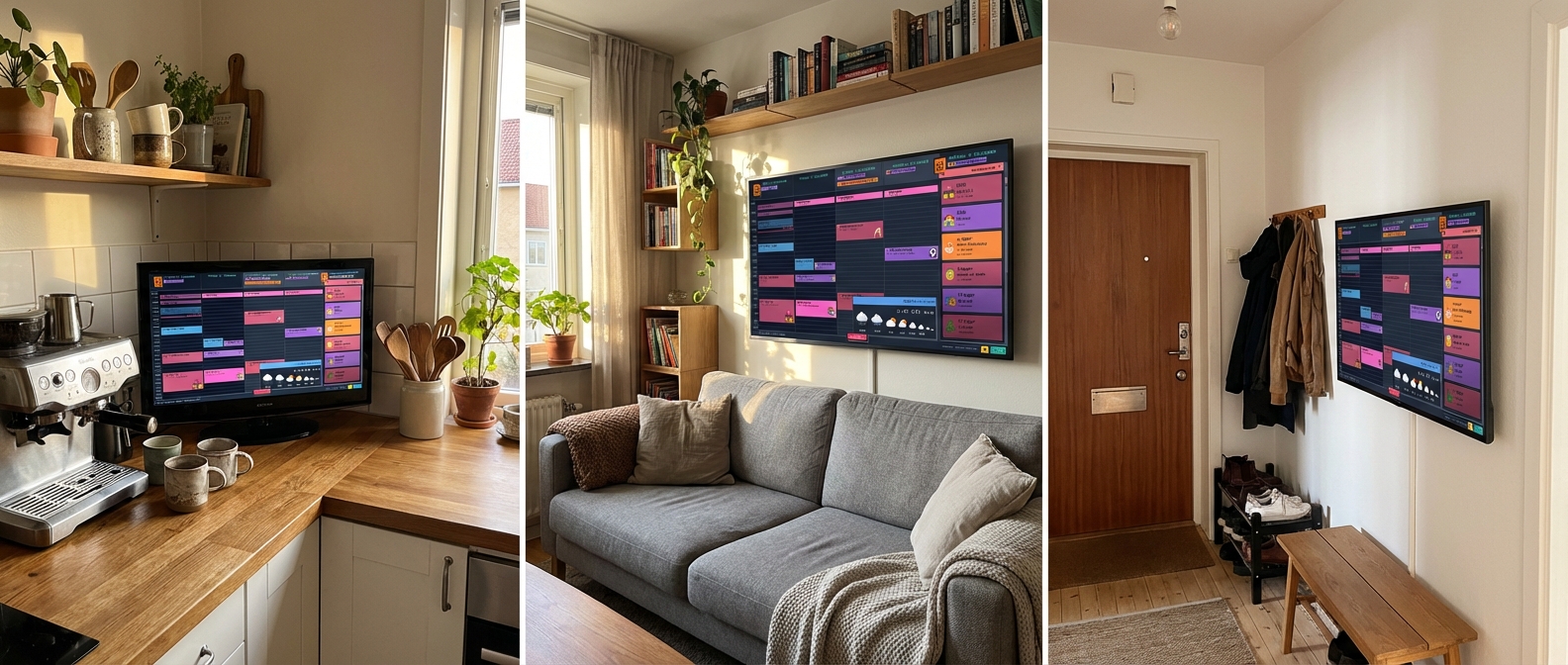
Your TV is already somewhere in your home. The question is which one makes the best calendar display.
Set Up a Night Schedule
Good news: your TV probably already has a sleep timer built in. No need to buy anything extra.
- Samsung: Settings → General → System Manager → Time → Sleep Timer
- LG: Settings → General → Timers → Sleep Timer (or "Auto Power Off")
- Android TV: Settings → Device Preferences → Timer → Sleep Timer
Set it to turn off at bedtime. Some TVs also have an "On Timer" that turns the TV on automatically in the morning — Samsung and LG both support this. Set it to 6:30 AM and your calendar is ready before the family wakes up.
No "turn on" timer on your TV? A cheap power timer ($5-8 at any hardware store) on the outlet does the same thing.
What Shows on the Screen
Family Calendar takes your Google Calendar and turns it into a 5-day view that looks great on a big screen:
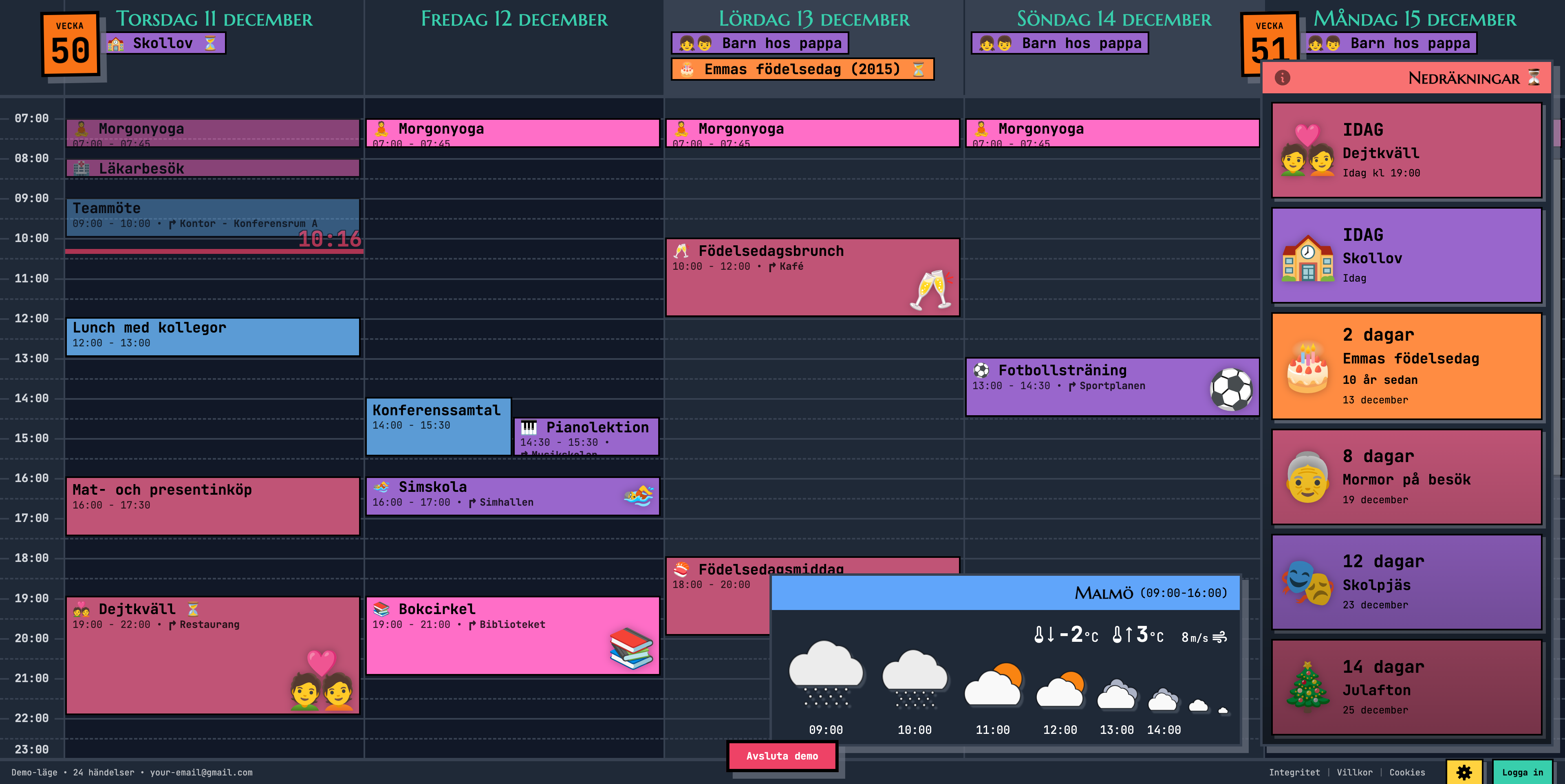
- Emoji events that kids can read from the couch — see the soccer ball, know it's soccer day
- Countdown sidebar — "3 days until grandma visits!" keeps everyone excited
- Weather forecast — check if you need a jacket on the way out
- Auto-refreshes — add an event on your phone, it shows up on the TV within minutes
- Readable from across the room — designed for glancing, not squinting
Ready to See It in Action?
Head over to calendar.norfeldt.com, connect your Google Calendar, and watch the magic happen.
Great plans — even to just try it out:
Quick Setup (TL;DR)
| What to Do | Time | |
|---|---|---|
| Step 1 | Find and open the browser on your TV | 1 min |
| Step 2 | Go to calendar.norfeldt.com, sign in, pick calendars, bookmark | 3 min |
| Bonus — optional extras | ||
| 📺 | Upgrade with a streaming stick for smoother experience | $30-40 |
| 🌙 | Set the TV's sleep timer for nighttime | 1 min |